
Free Grade Calculator (Weighted & Total Points)
“Supports numeric scores (e.g., 85) and letter grades (e.g., A-).”
Grade Calculator
| Assignment | Grade (or Letter) | Weight (%) | |
|---|---|---|---|
| Assignment Name | Grade (or Letter) | Weight (%) | |
| Assignment Name | Grade (or Letter) | Weight (%) | |
| Assignment Name | Grade (or Letter) | Weight (%) |
Current Grade
0.00%Enter grades above.
Final Exam Forecaster
About Grade Calculator
Welcome to the most comprehensive Grade Calculator on the web. Whether you are a high school student trying to keep your GPA up or a college student calculating what you need on your final exam to pass, this tool is built for you.
Unlike basic calculators that only handle simple averages, our smart tool supports both Weighted Grades (where homework, quizzes, and exams have different percentages) and Total Points grading systems. It even features "Smart Detection," allowing you to enter letter grades (like "A-" or "B+") directly into the calculation without needing to convert them to numbers first.
Key Features:
- Weighted & Unweighted Modes: Perfect for any syllabus.
- Final Exam Forecaster: Instantly calculate exactly what score you need on your final exam to reach your target grade.
- Smart Letter Input: Type "A", "B+", or "85" – the calculator understands it all.
- Mobile Optimized: Designed to be fast and easy to use on your phone while in class.
Stop guessing your grade. Enter your assignments above to see exactly where you stand in seconds.
How This Grade Calculator Works? Step By Step Guide
Step 1: Select Your Grading Mode
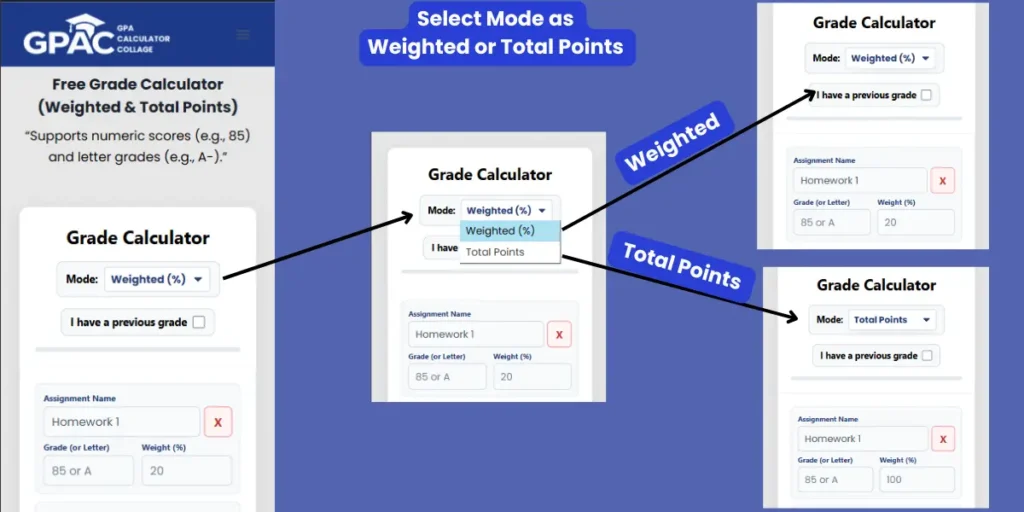
Before entering any numbers, you need to tell the calculator how your class is graded. Locate the "Mode" dropdown menu at the top of the tool and choose one of the following:
- Weighted (%): Select this if your syllabus breaks your grade down by categories with percentages (e.g., "Homework is worth 20%, Midterm is 30%, and Final Exam is 50%"). This is the most common setting for high school and college courses.
- Total Points: Select this if your teacher calculates grades by simply adding up all the points you earn (e.g., "You earned 450 points out of 500 possible points").
Pro Tip: If you are unsure, check your course syllabus! If you see the % symbol next to assignment categories, use Weighted.
Step 2: Have a Previous Grade? (Optional)
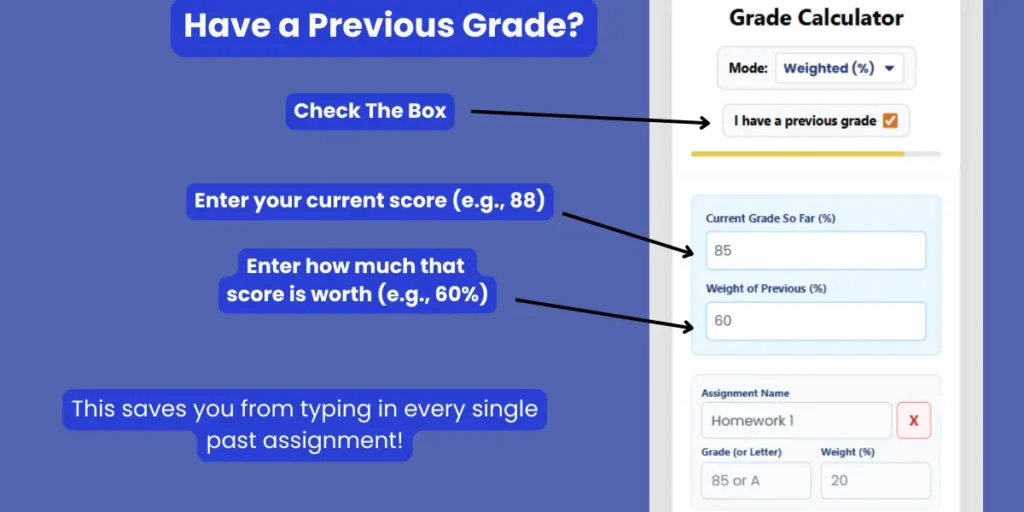
If you are calculating your grade halfway through the semester, you don't need to waste time typing in every single homework assignment from the past three months. Our tool has a "Previous Grade" feature designed specifically for this situation.
How to use it:
- Check the Box: Click the checkbox labeled "I have a previous grade" located just below the Mode selector.
- Enter Your Score: In the new box that appears, type your current class average (e.g., 88 or 88%).
- Enter the Weight: Type in how much of the course grading is already finished (e.g., 60%).
Why use this? This locks in your past performance so you can focus entirely on calculating the impact of your new or upcoming assignments (like your Final Exam).
Step 3: Enter Your Course Assignments
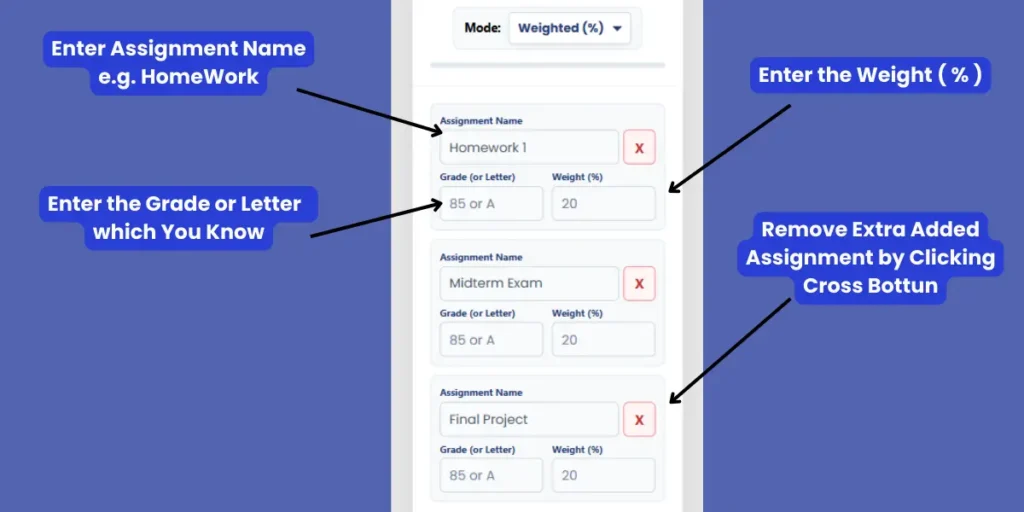
Now it is time to input your actual data. Our tool makes this incredibly fast with three simple columns:
- Assignment Name: Give your row a label like "Homework 1," "Midterm," or "Essay." This is optional but helps you stay organized.
- Grade (or Letter): Enter the score you received.
- Smart Feature: You don't need to convert letters yourself! You can type a number (e.g., 85) OR a letter grade (e.g., B+, A-). The calculator handles both automatically.
- Weight (%): Enter how much that assignment is worth according to your syllabus (e.g., 20).
Need to delete a row? If you added too many rows or made a mistake, simply tap the Red "X" Button on the right side of the row to remove it instantly.
Step 4: Check Your Result & Manage Assignments
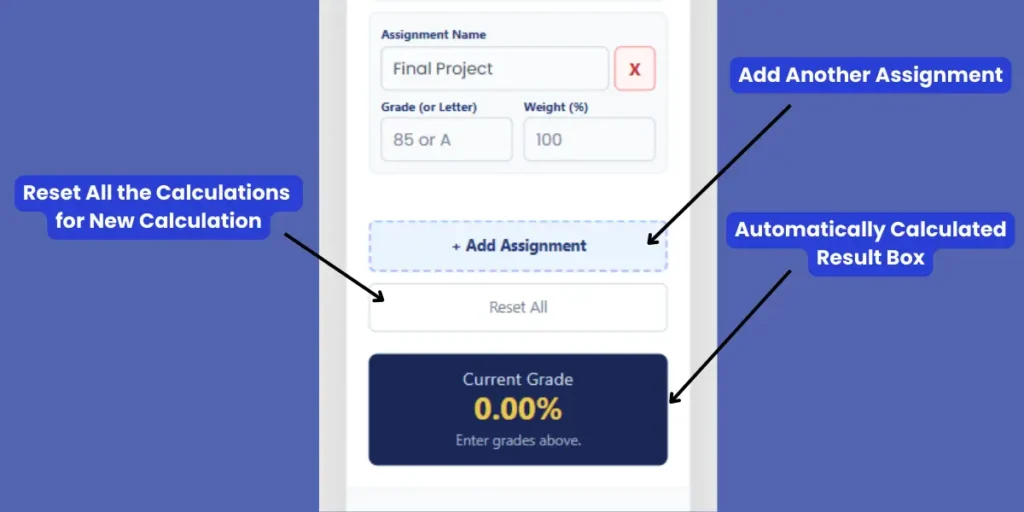
Once you enter your data, our Smart Grade Calculator instantly does the math for you. You do not need to press a "Calculate" button, the Current Grade box updates in real-time as you type.
- Real-Time Feedback: The result box displays your Weighted Average or Total Points percentage immediately. It also changes color (Green, Gold, or Red) to give you a visual indicator of your standing.
- Add More Assignments: If you have more than three assignments to enter, simply click the "+ Add Assignment" button to create new rows.
- Start Over: If you want to clear everything and start fresh for a different class, click the "Reset All" button.
Note: This tool functions as a running GPA calculator for your specific course, ensuring you always know your exact current class grade before finals week.
Step 5: Forecast Your Final Exam
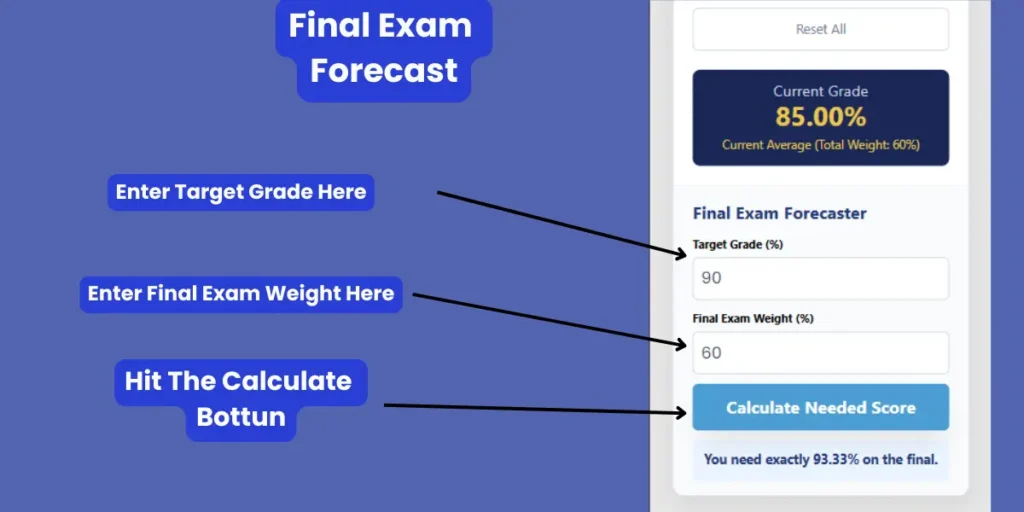
This is the most powerful feature of our tool. Instead of manually guessing "What if I get a 90% on the final?", let our Final Exam Forecaster tell you the exact number you need to hit your goal.
How to use it:
- Target Grade (%): Enter the overall grade you want to finish the class with (e.g., 90 for an A).
- Final Exam Weight (%): Enter how much your final exam is worth according to your syllabus (e.g., 20 or 30).
- Click Calculate: Press the "Calculate Needed Score" button.
Understanding the Result:
- Standard Message: "You need exactly 93.33% on the final." -> This is your target score.
- Green Message: "You're safe! You need 0%..." -> You have already secured your target grade; the final exam cannot lower you below it.
- Orange Warning: "You need 105%..." -> This means it is mathematically impossible to reach your target without extra credit, as you would need more than a perfect score.
How to Calculate Your Grade: Formulas & Logic
Understanding how your grade is calculated is the first step to improving it. Our calculator follows the standard academic grading formulas used by high schools and universities worldwide.
1. The Formulas We Use
Depending on your course syllabus, your grade is calculated using one of two methods. Our tool automatically applies the correct mathematical rule based on the mode you select.
A. Weighted Grade Formula
This is used when categories (like Exams, Homework, and Labs) have different percentage values.
The formula is the sum of all weighted scores divided by the sum of all weights:

Example:
- Homework: 90% (Worth 20%) → 90 × 20 = 1800
- Midterm: 80% (Worth 30%) → 80 × 30 = 2400
- Final: 85% (Worth 50%) → 85 × 50 = 4250
- Calculation: ( 1800 + 2400 + 4250 \20 + 30 + 50 ) = 8450\100 = 84.5%
B. Total Points Formula
This is used when assignments are worth a specific number of "points" rather than a percentage.

2. Grading Scale Table (Letter to Number)
Our tool features "Smart Letter Detection." If you type a letter grade (like "B+") into the calculator, it automatically converts it to a percentage using the standard US Grading Scale below. This ensures your calculation is always mathematically accurate.
| Letter Grade | Percentage Value Used | GPA Value (4.0 Scale) |
| A+ | 98% | 4.0 |
| A | 95% | 4.0 |
| A- | 92% | 3.7 |
| B+ | 88% | 3.3 |
| B | 85% | 3.0 |
| B- | 82% | 2.7 |
| C+ | 78% | 2.3 |
| C | 75% | 2.0 |
| C- | 72% | 1.7 |
| D+ | 68% | 1.3 |
| D | 65% | 1.0 |
| D- | 62% | 0.7 |
| F | 50% | 0.0 |
3. Why This Calculator is 100% Accurate
Many online calculators fail because they assume your weights always add up to 100%. If you have only finished half the semester, your weights might only add up to 40% or 50%.
Our Accuracy Rules:
- Dynamic Scaling: If your entered weights only add up to 60% (because you haven't taken the Final Exam yet), our tool correctly scales your grade to reflect your current standing, not a failing grade.
- Precision Rounding: All calculations are processed with floating-point precision and rounded to two decimal places (e.g., 89.95%) for the final display, preventing rounding errors that could misinform you about an "A" vs. a "B."
- Impartial Final Forecasting: The "Final Exam Forecaster" uses your exact current weighted average to solve for $x$ (the required future score), giving you a precise target to aim for.