
GPA Calculator Pakistan: Calculate CGPA for COMSATS, NUST, UMT & UAF
Pakistan All Universities GPA Calculator
Select Your University
Choose your university to apply the correct grading formula.
Cumulative GPA Forecaster
What GPA do you need to reach your graduation goal?
Previous CGPA (Optional)
Enter your current CGPA to get update about total degree progress.
About Pakistan University GPA Calculator
Welcome to the most accurate and comprehensive GPA Calculator College Designed For Pakistan Universities to calculate GPA and available online. Whether you are a fresh undergraduate student or nearing graduation, our tool is designed to take the guesswork out of your academic results.
Unlike generic calculators that use a standard American 4.0 scale, this tool is specifically engineered for the Pakistani Higher Education System. It supports the HEC (Higher Education Commission) grading standards as well as the unique custom grading scales used by top universities across Pakistan.
Why Use This Online GPA Calculator?
Many students ask, “What is GPA?” and “How to calculate GPA from marks?” Calculating your academic standing manually can be confusing because every university in Pakistan follows a slightly different formula. Whether you are looking for a GPA to CGPA calculator or a way to convert your GPA to percentage, our tool simplifies the process.
- NUST uses an absolute grading system.
- COMSATS has specific credit weightings for CU Online and campus students.
- UAF (Agriculture University) often uses a different quality point ratio.
Our tool solves this problem. We have pre-loaded the grading formulas for major institutions so you don’t have to calculate manually. Simply select your university from the dropdown, enter your marks or grades, and get an instant, 100% accurate result.
Supported Universities
We provide specialized support for the following institutions:
COMSATS GPA Calculator
Optimized for all campuses (Islamabad, Lahore, Abbottabad, etc.).
GPA Calculator UMT
Accurate formulas for the University of Management and Technology.
UAF GPA Calculator
Specific settings for the University of Agriculture Faisalabad.
UOG GPA Calculator
Tailored for the University of Gujrat grading scheme.
UOL GPA Calculator
For students of the University of Lahore.
IIUI GPA Calculator
International Islamic University Islamabad supported.
NUST, FAST-NU, UET, GIKI, & PU
Pre-set standards for Pakistan’s top engineering and general universities.
Stop worrying about complex formulas. Track your Semester GPA (SGPA) and Cumulative GPA (CGPA) effortlessly with the tool above.
Guide How to Use GPAC for the Pakistan GPA System
Navigating university grading systems can be tricky. Whether you are a student at NUST, UOG, or studying under the standard HEC system, this tool automates the complex calculations for you.
Follow this simple guide to calculate your GPA (Grade Point Average) and CGPA (Cumulative Grade Point Average) in seconds.
The Formula We Use: Most universities in Pakistan follow the Higher Education Commission (HEC) standard formula for Semester GPA (SGPA):
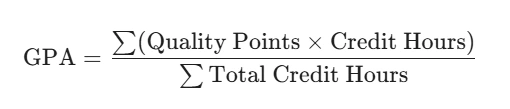
- Quality Points: Your Grade Point multiplied by the Credit Hours for that subject.
- Total Credit Hours: The sum of all credits attempted in the semester.
Our tool automatically adjusts the Grade Point values based on the university you select, ensuring your calculation is 100% accurate to your institution’s specific grading scale.
Step 1: Select Your University
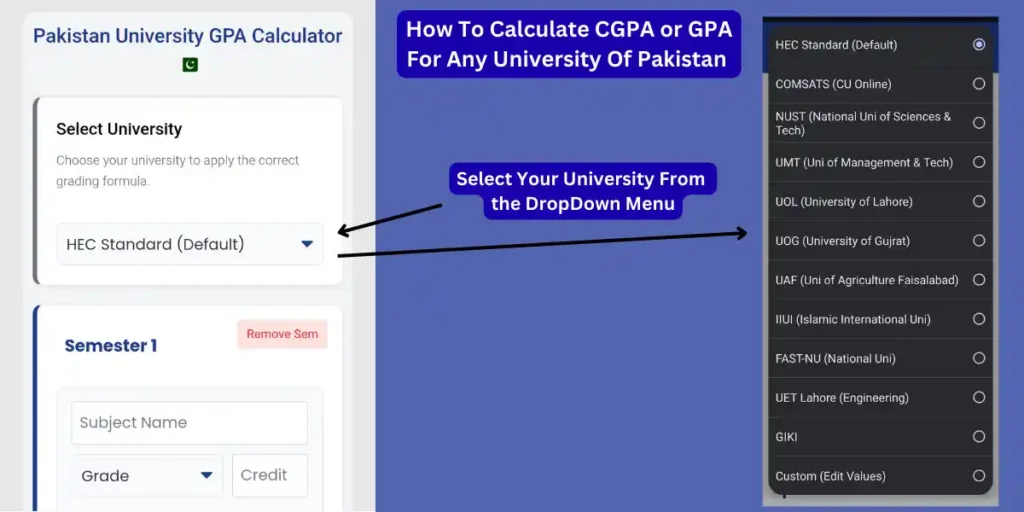
The first and most important step is to tell the calculator which grading system you are being tested on.
- Locate the Dropdown: At the very top of the tool, you will see a dropdown menu labeled “Select University” (or “HEC Standard (Default)”).
- Choose Your Institution: Click the menu to see the full list of supported universities.
- HEC Standard: Select this if your university follows the general 4.0 scale used by most colleges in Pakistan.
- Specific Universities: If you attend COMSATS, NUST, UMT, UOL, UOG, or UAF, select your specific university name. This changes the internal formula to match your university’s unique grading policy (e.g., NUST’s absolute grading or UAF’s specific quality points).
- Custom Option: If your university is not listed, you can select “Custom (Edit Values)” to manually input your own grading scale.
Step 2: Enter Subject Name and Credits
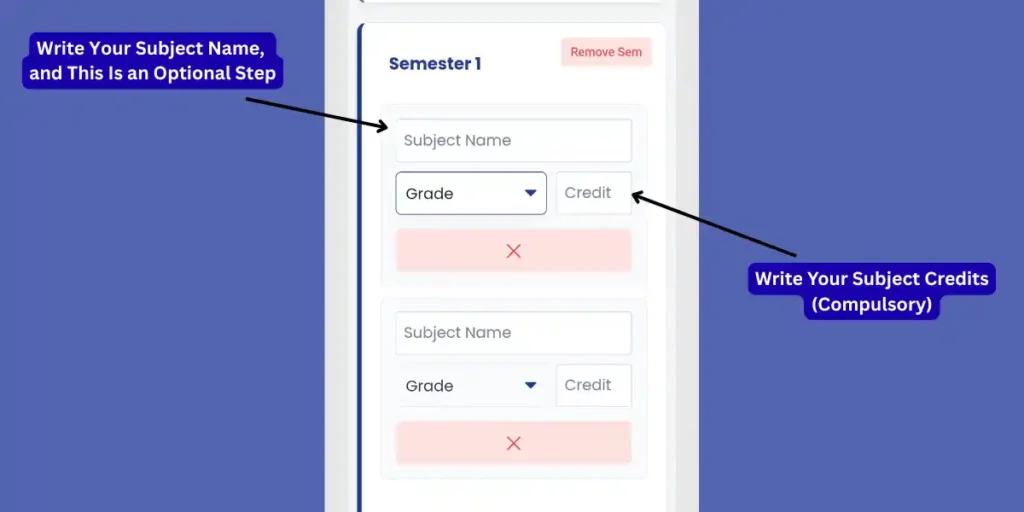
Once you have selected your university, you need to input the details for each course you are taking this semester.
- Enter Subject Name (Optional): Find the text box labeled “Subject Name” in the first semester block. Type in the name of your course (e.g., “Physics” or “English 101”). This step is optional but helps you organize your calculation if you are entering many subjects.
- Input Credit Hours (Compulsory): Locate the small box labeled “Credit” to the right of the grade dropdown menu. Enter the credit hours assigned to that specific subject (usually 3 or 4 for theory courses, and 1 for labs).
- Important: This is mandatory because the calculator uses these credits to determine the weight of each grade in your final GPA. A 4-credit course affects your GPA more than a 1-credit lab.
Step 3: Select Your Obtained Grade
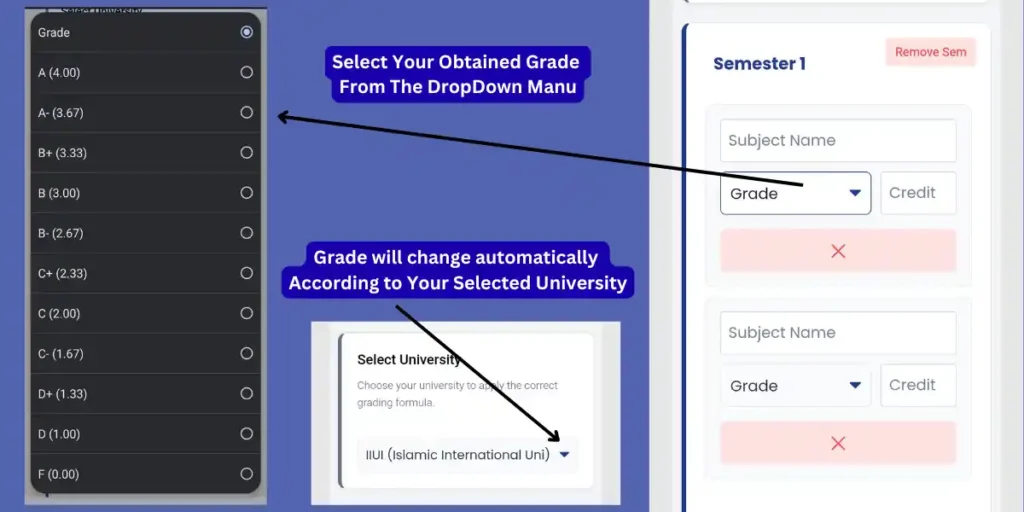
Now that you have entered the subject details, you need to select the grade you achieved in that course.
- Open the Grade Menu: Click on the dropdown box labeled “Grade”. This will reveal the list of grading options applicable to your specific university.
- Select Your Grade: Scroll through the list and click on the grade you received (e.g., A, B+, C, etc.).
- Important Note: The grades shown in this list change automatically based on the university you selected in Step 1.
- Example: If you selected IIUI, you will see the specific IIUI grading scale.
- Example: If you selected NUST or UAF, the list will update to show their specific grading points. You do not need to memorize the points; just pick your letter grade, and the tool handles the math.
Step 4: Add New Subjects or Remove Extra Ones
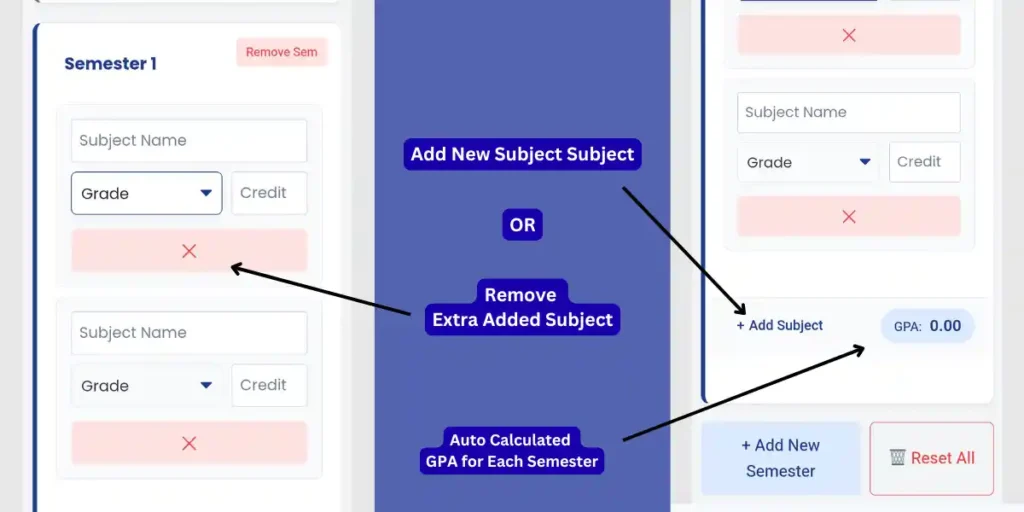
Your course load changes every semester, so the calculator allows you to customize the number of subjects.
- Add a New Subject: If you are taking more courses than the default rows provided, simply click the “+ Add Subject” button at the bottom of the semester box. This will instantly create a new empty row for you to input another course.
- Remove Extra Subjects: If you have too many rows (e.g., the tool shows 6 subjects but you are only taking 4), click the pink “X” button below the specific subject you want to delete. This removes that row from the calculation to ensure accuracy.
- View Semester Result: As soon as you enter your grades, look for the light blue badge labeled “GPA” at the bottom right of the semester block. This shows your Semester GPA (SGPA) for that specific term.
Step 5: Add New Semester or Remove Extra
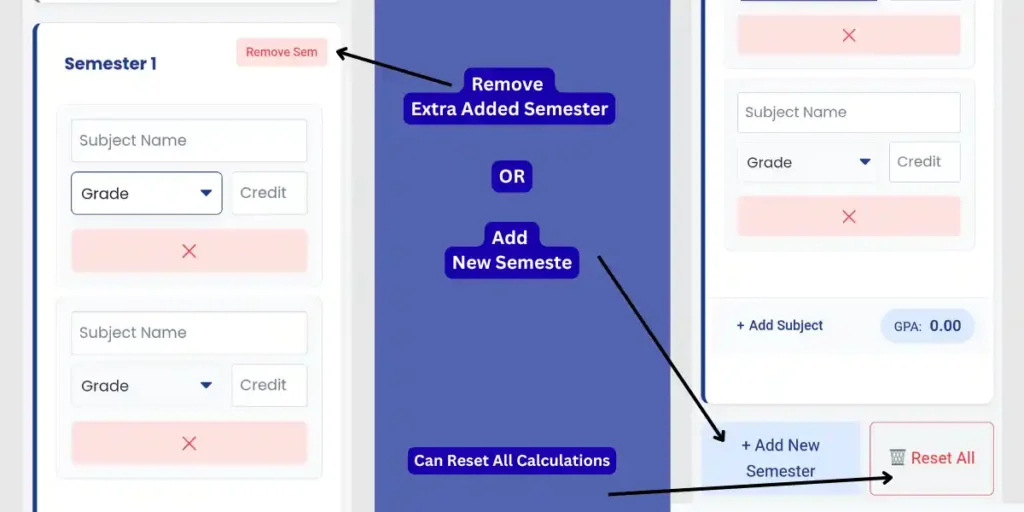
To calculate your Cumulative GPA (CGPA), you often need to combine results from multiple semesters (e.g., Semester 1 + Semester 2).
- Add a New Semester: Click the blue “+ Add New Semester” button located below the current semester block. This will create a fresh section (labeled “Semester 2”, “Semester 3”, etc.) where you can enter a new set of courses.
- Remove a Semester: If you accidentally added an extra semester or want to delete one to check your GPA without it, click the pink “Remove Sem” button located at the top right corner of that specific semester block.
- Reset Everything: If you want to clear all data and start completely fresh, click the “Reset All” button. This deletes all semesters and courses at once.
Step 6: View Your Calculated Results
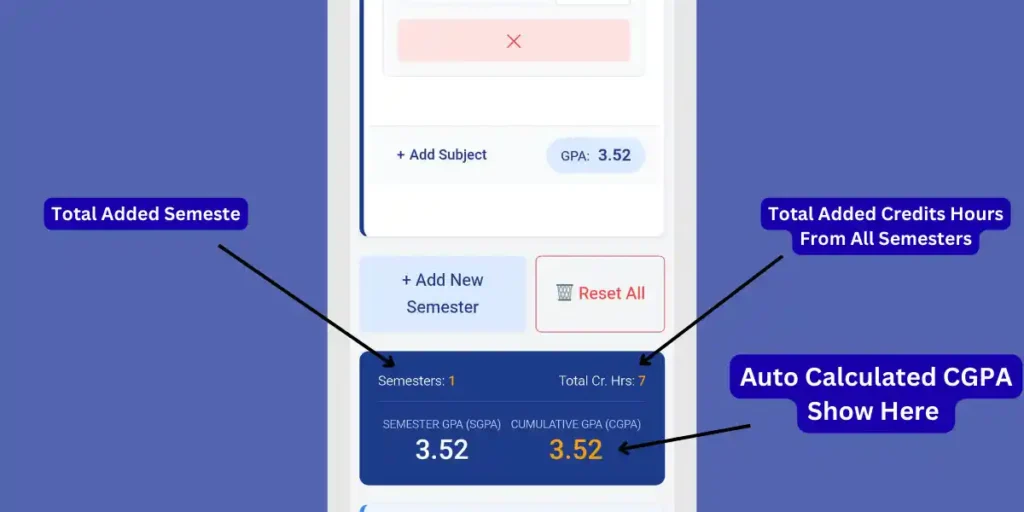
Once you have entered all your semesters and subjects, the calculator automatically generates a detailed summary of your academic performance.
- Check Total Semesters & Credits: Look at the dark blue results bar at the bottom of the tool.
- Semesters: On the left side, you will see the total count of semesters you have added (e.g., “Semesters: 1”).
- Total Cr. Hrs: On the right side, it displays the total number of credit hours you have attempted across all semesters (e.g., “Total Cr. Hrs: 7”).
- View Semester GPA (SGPA): The large number on the left side of the blue box shows your Semester GPA. This is the average grade for the specific semester you are currently calculating.
- View Cumulative GPA (CGPA): The large yellow/gold number on the right side labeled “CUMULATIVE GPA (CGPA)” is your final result. This combines all your grades from every semester you added to give you your overall standing.
Pro Features On Same Page
Step 7: Forecast Your Cumulative GPA (Pro Feature)
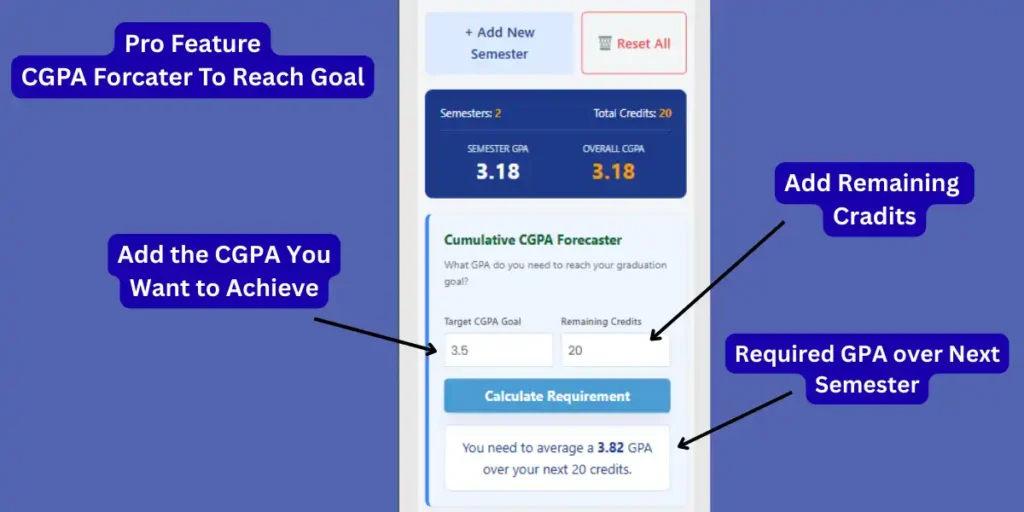
This advanced feature helps you plan your future by calculating exactly what GPA you need to maintain in your remaining semesters to achieve your final graduation goal (e.g., graduating with a 3.5 or 4.0).
Calculate Requirement: Click the blue “Calculate Requirement” button. The tool will instantly display the average GPA you need to score in your future classes to reach that goal (e.g., “You need to average a 3.82 GPA over your next 20 credits”).
Step 8: Know Your Total Current CGPA
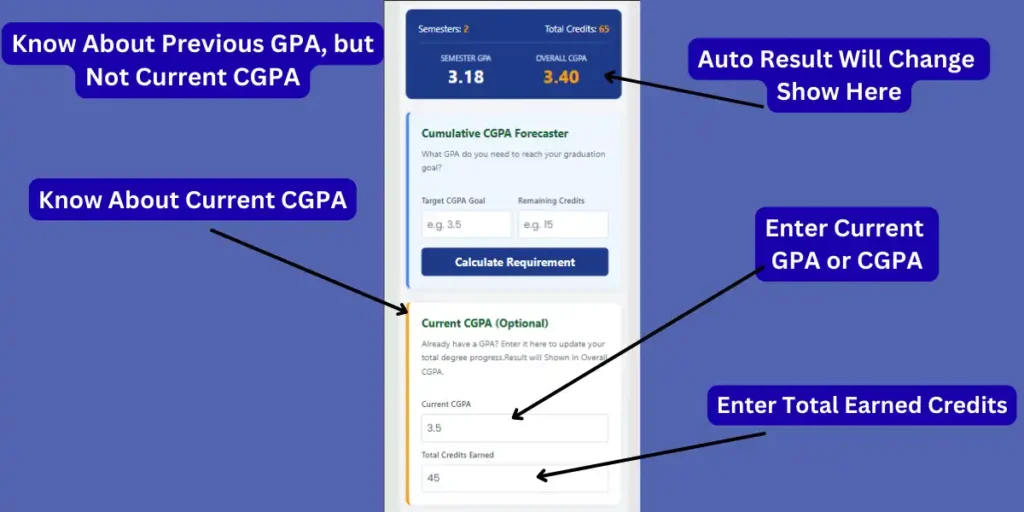
If you have already completed some semesters and want to know your updated Total CGPA (combining your past semesters with this new one), use this section.
- Enter Your Existing CGPA: Scroll down to the section labeled “Current CGPA (Optional)”. In the box labeled “Current CGPA”, enter the GPA you have maintained up until now (e.g., 3.5).
- Note: Think of this as your “Previous” GPA before taking the new courses you just entered.
- Enter Total Credits Earned: In the next box, input the “Total Credits Earned” in your degree so far (e.g., 45).
- See Your Updated Result: Once you enter these details, look at the “OVERALL CGPA” (the yellow/gold number) in the results bar at the top or bottom. This number is your New Current CGPA, which includes both your past history and your new semester’s result.
Scales Used By Defernt Universities In Pakistan
1. HEC Standard Scale (Most Common)
Used by: COMSATS, UET (Main), FAST-NU, AIR, Bahria, and most Federal Universities.
| Letter Grade | Marks Range (%) | Grade Point (GPA) | Remarks |
| A | 85 – 100 | 4.00 | Outstanding |
| A- | 80 – 84 | 3.67 | Excellent |
| B+ | 75 – 79 | 3.33 | Very Good |
| B | 71 – 74 | 3.00 | Good |
| B- | 68 – 70 | 2.67 | Above Average |
| C+ | 64 – 67 | 2.33 | Average |
| C | 61 – 63 | 2.00 | Satisfactory |
| C- | 58 – 60 | 1.67 | Pass |
| D+ | 54 – 57 | 1.33 | Low Pass |
| D | 50 – 53 | 1.00 | Marginal Pass |
| F | Below 50 | 0.00 | Fail |
2. The “Rounded” Scale (Punjab University Style)
Used by: University of the Punjab (PU), UCP, UMT (Specific Departments), and many provincial colleges.
| Letter Grade | Marks Range (%) | Grade Point (GPA) |
| A | 85 – 100 | 4.00 |
| A- | 80 – 84 | 3.70 |
| B+ | 75 – 79 | 3.30 |
| B | 70 – 74 | 3.00 |
| B- | 65 – 69 | 2.70 |
| C+ | 61 – 64 | 2.30 |
| C | 58 – 60 | 2.00 |
| C- | 55 – 57 | 1.70 |
| D | 50 – 54 | 1.00 |
| F | Below 50 | 0.00 |
3. NUST & Relative Grading Note
Important for your users:
Universities like NUST and GIKI often use Relative Grading. This means the “Marks Range” changes every year based on the class average (Mean) and Standard Deviation.
- A is usually awarded to the top 10-15% of the class.
- B is the average grade (Mean).
If you are displaying this on your site, I recommend adding a small note:
“Note: For universities with Relative Grading (like NUST), these percentage ranges are estimates. Your actual grade depends on the class average.”
Frequently Asked Questions
You do not need to enter every single past subject.
- Enter your current semester subjects in the “Semester 1” block.
- Scroll down to the “Current CGPA (Optional)” section.
- Enter your Previous CGPA (from your transcript) and Total Credits Earned so far.
- The calculator will combine them to give your updated Total CGPA.
GPA (Grade Point Average) represents your academic performance for a single semester. It is calculated based on the grades and credit hours of the subjects you took in that specific term. CGPA (Cumulative Grade Point Average) is the overall weighted average of all semesters combined. It represents your total academic standing from the start of your degree until now.
Our calculator makes this easy! Simply select your University System (e.g., HEC, UET, or COMSATS) from the top menu. Then, type your obtained marks (e.g., 82) into the “Marks” box. The tool will automatically detect the correct Grade Point (e.g., 3.7 or 4.0) based on your university’s specific grading policy.
Yes. COMSATS, NUST, and FAST often use Relative Grading (where the class average decides the grade).
- For Absolute Grading: Use the “HEC Standard” or “UET” presets.
- For Relative Grading: Select the “COMSATS / NUST” preset. However, please note that relative grading boundaries change every year based on class performance, so our result is the closest standard estimate.
Most HEC-recognized universities use the following weighted average formula:
For example, if you got an ‘A’ (4.0) in a 3-credit course, your Quality Points are 4.0*3 = 12.
3.5 – 4.0: Excellent. Often required for Gold Medals and foreign scholarships.
3.0 – 3.49: Very Good. Safe zone for most jobs and masters admissions.
2.5 – 2.99: Average. You are passing, but you should aim higher to avoid probation.
Below 2.0: Probation zone (Warning).
Yes! We have built-in grading scales for NUST, UOL, UMT, COMSATS, UAF, UOG, and IIUI. Simply select your university from the dropdown menu at the top, and the tool will automatically adjust the grade points (e.g., an ‘A’ at NUST might be 4.0, while at another uni it might vary).
Yes. As long as your college follows the semester system and credit hours (which ADP programs do), this tool works perfectly. Just enter your subjects and credits as normal.