
CGPA Calculator India: VIT, SRM & Anna University GPA to CGPA Converter
CGPA Calculator For Indian Universities
Select University / Board in India
Select your university to apply the correct 10-point scale.
CGPA Forecaster
Targeting a distinction? Check what you need.
Know About Current CGPA (Optional)
Enter your current CGPA to calculate updated result. Result Will show Above Automatically
About CGPA Calculator And Percentage Calculation
Welcome to the ultimate CGPA Calculator and CGPA to Percentage Calculator, designed specifically for students across India. Whether you are studying under the CBSE system, AICTE norms, or a specific state university, our tool ensures your grades are calculated with 100% accuracy.
Calculating your pointers can be tricky because every university follows a different grading logic.
- VTU (Visvesvaraya Technological University) uses a unique credit system.
- Anna University and KTU (APJ Abdul Kalam Technological University) have their own specific regulations for converting marks to grade points.
- SPPU (Pune University) and Mumbai University often update their grading tables.
How to Calculate CGPA
Our tool solves this confusion. Instead of searching for “how to calculate CGPA” manually, simply select your university from our list. We have pre-loaded the formulas for major institutions to help you track your Semester Grade Point Average (SGPA) and Cumulative Grade Point Average (CGPA) effortlessly.
Supported Universities & Features
We provide specialized support for the top technical and general universities in India:
- VTU CGPA Calculator: Optimized for Belagavi’s choice-based credit system (CBCS).
- Anna University: Accurate calculations for Regulation 2017 and 2021 batches.
- KTU CGPA Calculator: Specifically designed for Kerala Technological University students.
- SPPU & Mumbai University: Supports the latest grading scales for Maharashtra students.
- SRM & VIT: Dedicated presets for private institute grading standards.
- SGPA to CGPA Converter: Instantly combine your semester results to see your overall standing.
Stop guessing your grades. Use the smartest CGPA Calculator in India to plan your academic success and forecast your future percentage.
Step 1: Select Your University or Board
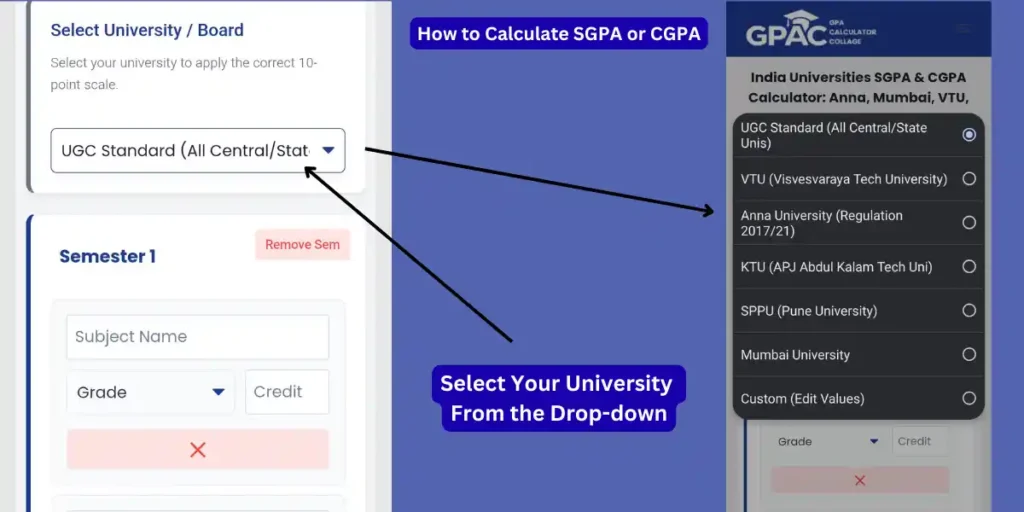
The most critical step in calculating an accurate SGPA or CGPA is ensuring the tool uses the correct grading scale for your specific institution.
Custom Option: If your college is not listed, you can select “Custom (Edit Values)” to manually enter the grade points as per your specific mark sheet.
Locate the Dropdown: At the top of the calculator, find the menu labeled “Select University / Board”. By default, this is set to “UGC Standard”, which covers most Central and State universities in India.
Choose Your Institution: Click the menu to reveal the specialized grading presets we have built for you:
VTU (Visvesvaraya Technological University): Select this if you are studying under the VTU CBCS system.
Anna University: Choose this for Regulation 2017 or 2021 grading scales.
KTU (APJ Abdul Kalam Technological Uni): Optimized for Kerala Tech University students.
SPPU (Pune University) & Mumbai University: Specific formulas for Maharashtra state universities.
Step 2: Enter Subject Name and Credits
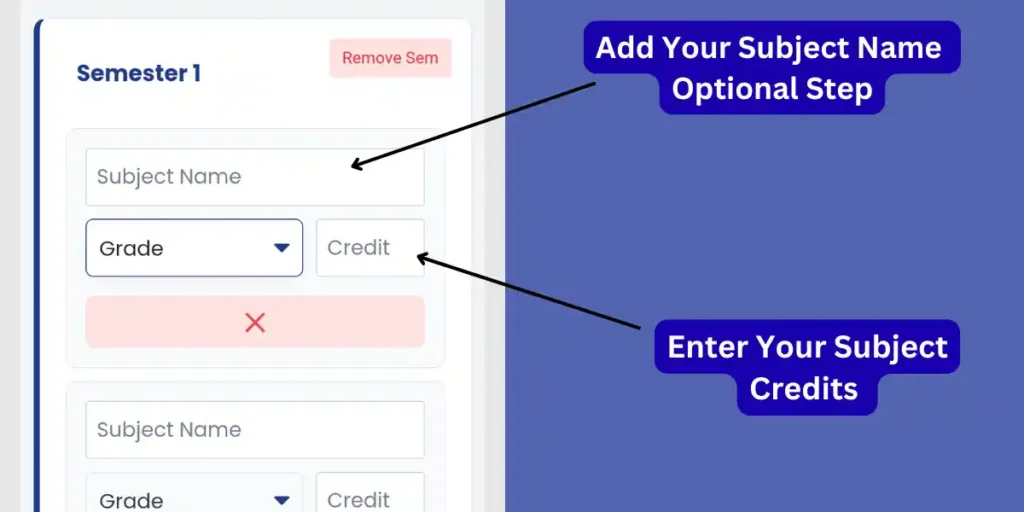
After selecting your university, you need to input the details for the specific courses you are taking.
- Enter Subject Name (Optional): Find the text box labeled “Subject Name”. Here you can type the name of your course (e.g., “Engineering Physics” or “Mathematics 1”). As indicated in the image, this is an “Optional Step”, meant to help you keep track of which grade belongs to which subject.
- Enter Subject Credits (Mandatory): Locate the small box labeled “Credit” next to the grade dropdown. You must enter the correct credit value for that subject (e.g., 3 or 4).
- Why is this important? Your SGPA is calculated based on credit weightage. A subject with 4 credits impacts your final score much more than a 1-credit lab. The tool needs this number to give you an accurate result.
Step 3: Select Your Obtained Grade
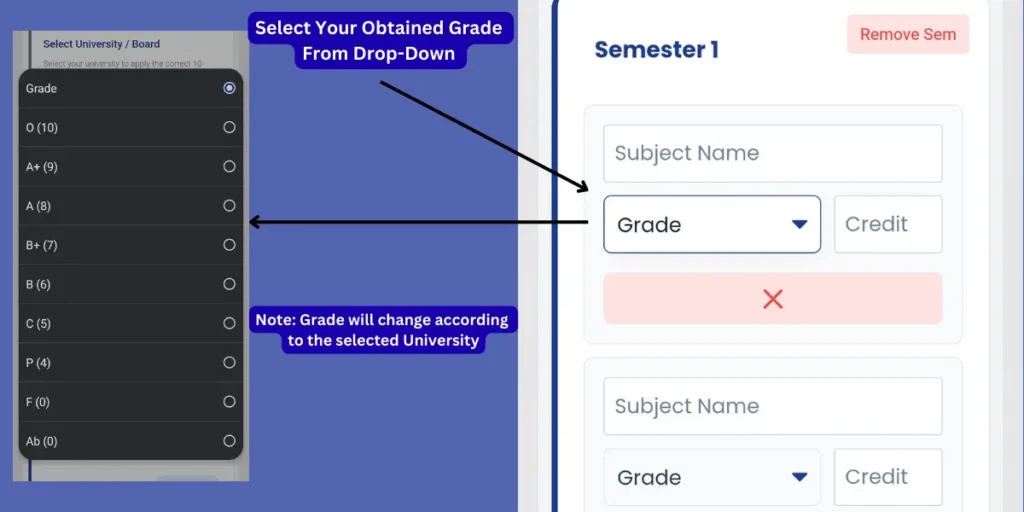
Now that your subject details are entered, you need to select the grade you achieved.
- Open the Grade Menu: Click on the dropdown box labeled “Grade”. This will open a list of letter grades corresponding to the 10-point scale typically used in Indian universities.
- Choose Your Result: Scroll through the list and select the grade you received (e.g., O (10), A+ (9), A (8), etc.).
- Smart Feature: As highlighted in the image, the grade points shown here change automatically based on the University/Board you selected in Step 1.
- Example: If you selected Anna University, you might see different point values compared to Mumbai University. You don’t need to remember the points; just pick the Letter Grade from your marksheet, and the calculator handles the math.
Step 4: Add New Subjects or Remove Extra Ones
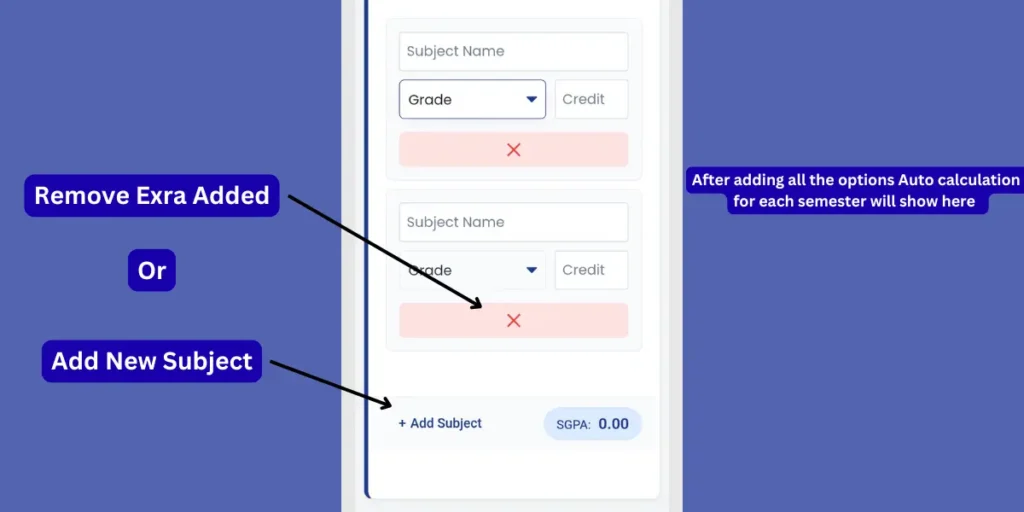
Your number of courses changes every semester. You might have 5 theory papers and 2 labs, or just 4 subjects. The calculator allows you to adjust the rows to match your exact schedule.
- Add a New Subject: If you have more subjects than the default rows provided, simply click the “+ Add Subject” button located at the bottom of the semester block. This instantly adds a new row for you to enter another course.
- Remove Extra Subjects: If there are extra empty rows you don’t need, click the pink “X” button (Remove) located below that specific subject.
- Tip: It is best to remove unused rows to keep your view clean, although blank rows won’t affect your final calculation.
- View Auto-Calculated SGPA: As soon as you enter a grade and credit, the calculator updates instantly. Look for the blue badge labeled “SGPA” at the bottom right of the semester box to see your result for that specific term.
Step 5: Add New Semester for CGPA or Reset Data
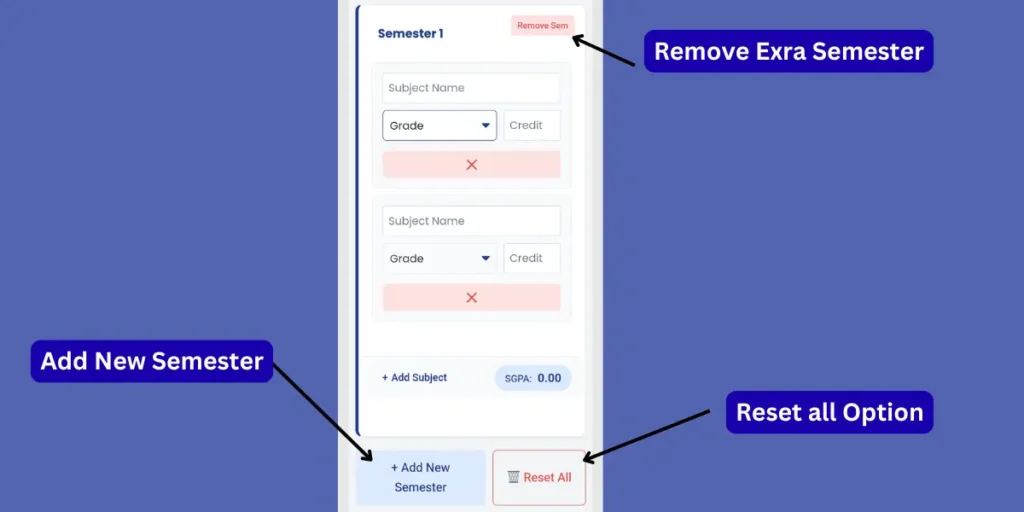
To calculate your Cumulative GPA (CGPA), which is the average of all your semesters combined, you need to add more semester blocks.
- Add a New Semester: Click the blue “+ Add New Semester” button located below the current semester block. This will create a fresh section (e.g., Semester 2) where you can enter grades for your next term.
- Why do this? If you only fill out one semester, you get an SGPA. If you add multiple semesters, the tool calculates your total CGPA.
- Remove a Semester: If you accidentally added an extra semester or want to exclude one from your calculation, click the pink “Remove Sem” button located at the top right corner of that specific semester block.
- Reset All Calculations: To wipe the calculator clean and start from scratch, click the “Reset All” button. This deletes all data, courses, and semesters instantly.
Step 6: View Results & Automatic Percentage Conversion
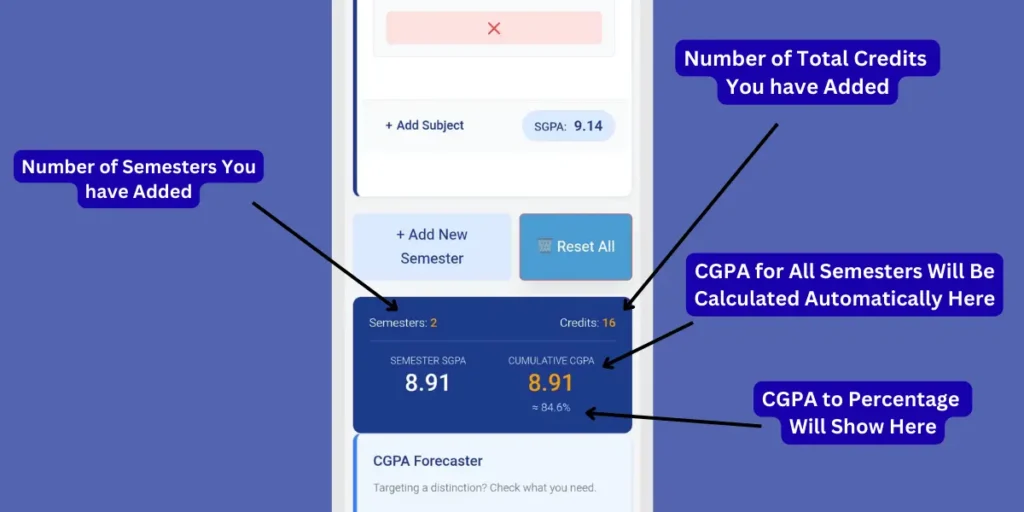
This is the most powerful part of the tool. Once you have entered your grades, the calculator provides a complete breakdown of your performance, including an automatic conversion to percentage.
- Check Your Totals: Look at the dark blue results bar.
- Semesters: Shows the total count of semesters included in this calculation.
- Credits: Displays the total credit hours you have completed (e.g., “Credits: 16”).
- View Semester SGPA: The large white number on the left labeled “SEMESTER SGPA” is your Grade Point Average for the specific semester you just entered.
- View Cumulative CGPA: The large yellow/gold number on the right labeled “CUMULATIVE CGPA” is your overall score across all the semesters you have added.
- Automatic Percentage Conversion: Look closely below the gold CGPA number. You will see a smaller number with a percentage sign (e.g., ≈ 84.6%).
- How it works: This is calculated automatically based on the University/Board you selected in Step 1.
- Example: If you selected CBSE, it multiplies your CGPA by 9.5. If you selected Anna University, it multiplies by 10. You don’t need to do any manual math!.
Step 7: Download Result as PDF or Share
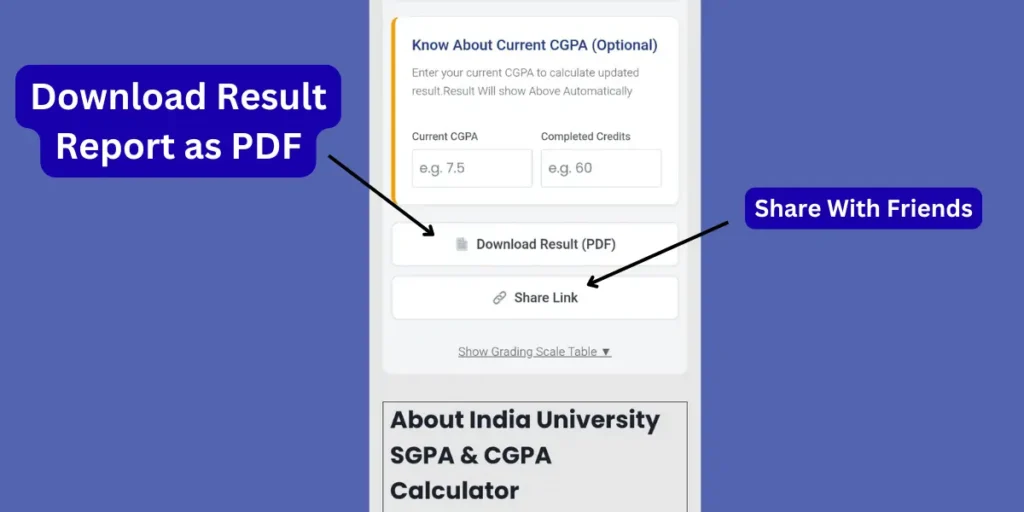
Once you have calculated your grades, you don’t need to take screenshots or write them down manually. Our tool allows you to generate a professional report instantly.
- Download Result (PDF): Click the “Download Result (PDF)” button. This will automatically generate and download a PDF file containing a detailed summary of your semester-wise SGPA, total credits, and final CGPA.
- Why use this? It serves as a great unofficial transcript for your personal records, internship applications, or to show your parents.
- Share With Friends: Click the “Share Link” button to copy a direct link to this calculator. You can easily send this to your classmates via WhatsApp or email so they can calculate their grades using the same university standards.
- View Grading Table: Below the buttons, you can also click “Show Grading Scale Table” to see the exact marks-to-grade logic used for your specific university calculation.
Pro Feature: Forecast Your Required CGPA
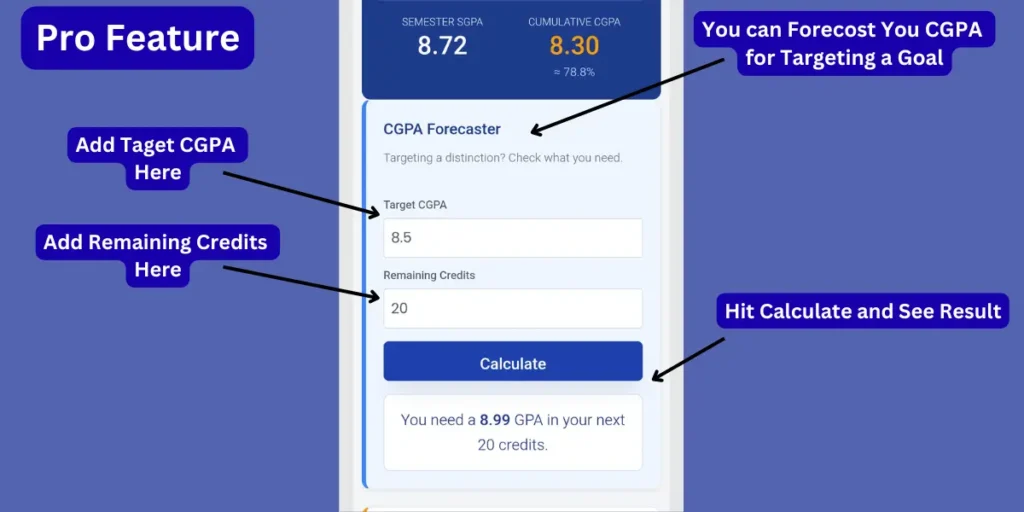
This advanced “Forecaster” tool helps you plan your academic future. If you are aiming for a specific class (like First Class with Distinction) or a target CGPA for placement eligibility, this feature tells you exactly what you need to score in your remaining semesters.
- Enter Your Goal: Scroll down to the “CGPA Forecaster” section. In the box labeled “Target CGPA”, enter the final score you want to achieve by the time you graduate (e.g., 8.5 or 9.0).
- Enter Remaining Credits: In the next box, input the “Remaining Credits” you have left to complete in your degree (e.g., 20). This helps the calculator understand how much “weight” your future exams have.
- Calculate the Requirement: Click the blue “Calculate” button. The tool will instantly analyze your current standing and tell you the exact GPA you need to average in your upcoming exams to hit your goal.
- Example Result: “You need a 8.99 GPA in your next 20 credits”.
Pro Feature: Know Your Updated Total CGPA
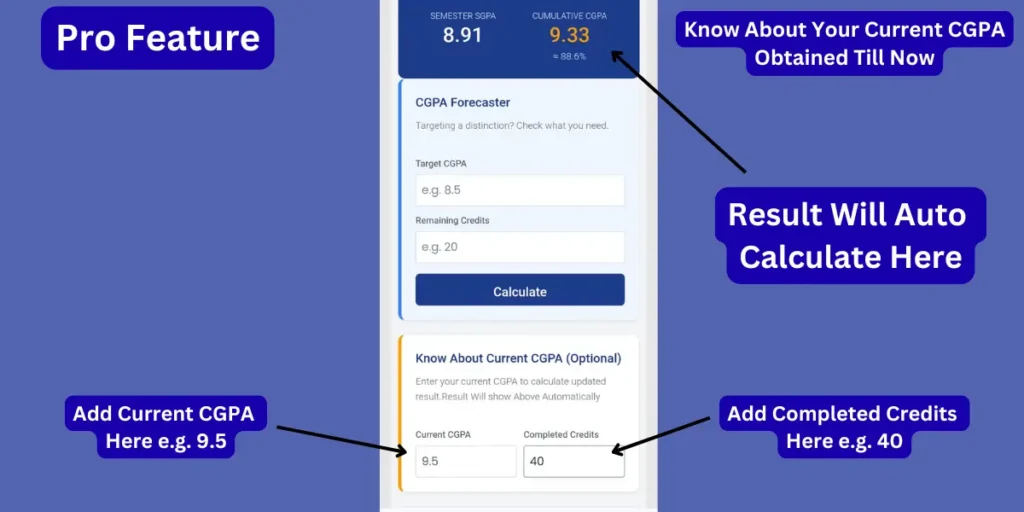
If you are in your 2nd, 3rd, or final year, you don’t need to re-enter every single past subject to get your total result. You can simply combine your past history with your new semester grades.
- Enter Your Existing Score: Scroll to the section labeled “Know About Current CGPA (Optional)”. In the box labeled “Current CGPA”, type the GPA you have maintained up until now (e.g., 9.5).
- Enter Total Credits Earned: In the next box, labeled “Completed Credits”, enter the total number of credit hours you have already finished in your previous semesters (e.g., 40).
- View Your New Cumulative Result: As soon as you type these numbers, look at the “CUMULATIVE CGPA” (the gold number) in the dark blue results box at the top.
- What just happened? The calculator took your old CGPA, combined it with the new grades you entered in the semester block, and gave you your Total Updated CGPA instantly.
How We Calculate Your Grades (Formulas & Logic)
At GPA Calculator College, we don’t just guess your grades. We use the official mathematical formulas mandated by the University Grants Commission (UGC) and specific state universities.
Understanding how your SGPA (Semester Grade Point Average) and CGPA (Cumulative Grade Point Average) are calculated can help you plan your studies better.
1. The Standard SGPA Formula
Most Indian universities (including VTU, Anna University, and KTU) use a Credit-Weighted Average to calculate your semester result. The formula is:
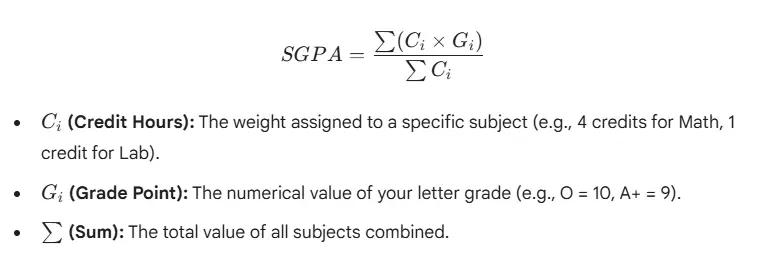
In simple terms: We multiply your Grade by the Credits for every subject, add them all up, and divide by the Total Credits you attempted.
SGPA = (Credit × Grade Points) ÷ Total Credits
2. University-Specific Conversion Formulas (CGPA to Percentage)
The biggest confusion for students is converting their CGPA into a Percentage because every university has a different rule. Our calculator automatically applies the correct formula based on your selection:
| University / Board | Conversion Formula Used |
| CBSE / UGC Standard | Percentag = CGPA X 9.5 |
| Anna University | Percentage = CGPA X 10 |
| VTU (Visvesvaraya Tech) | Percentage = (CGPA – 0.75) X 10 |
| KTU (Kerala Tech) | Percentage = (10 X CGPA) – 3.75 |
| Mumbai University | Percentage = (7.1 X CGPA) + 11 |
| SPPU (Pune University) | Percentage = ( CGPA X 10) – 7.5 (Varies by batch) |
Note for Mumbai University: The formula (7.1 X CGPA) + 11 is the standard for the CBCS 10-point grading system. Older batches may follow different scales.
3. Grading Scale Reference (10-Point System)
While some universities differ slightly, most follow this standard UGC 10-Point Grading Scale which our tool uses as the default:
- O (Outstanding): 10 Points (90-100%)
- A+ (Excellent): 9 Points (80-89%)
- A (Very Good): 8 Points (70-79%)
- B+ (Good): 7 Points (60-69%)
- B (Above Average): 6 Points (55-59%)
- C (Average): 5 Points (50-54%)
- P (Pass): 4 Points (40-49%)
- F (Fail): 0 Points (Below 40%)
Understanding Grading Scales (2024-2025)
Here is how different universities convert Marks into Grade Points.
1. Anna University (Regulation 2021)
| Letter Grade | Marks Range | Grade Point |
| O (Outstanding) | 91 – 100 | 10 |
| A+ (Excellent) | 81 – 90 | 9 |
| A (Very Good) | 71 – 80 | 8 |
| B+ (Good) | 61 – 70 | 7 |
| B (Average) | 50 – 60 | 6 |
| RA (Re-Appear) | Below 50 | 0 |
2. Mumbai University (Rev-2019 “C” Scheme)
| Letter Grade | Marks Range | Grade Point |
| O (Outstanding) | 80 – 100 | 10 |
| A (Excellent) | 70 – 79 | 9 |
| B (Very Good) | 60 – 69 | 8 |
| C (Good) | 50 – 59 | 7 |
| D (Fair) | 45 – 49 | 6 |
| E (Average) | 40 – 44 | 5 |
| P (Pass) | 40 | 4 |
Note: VTU and KTU follow similar 10-point scales but often use “S” or “Fcd” grades. Select the VTU preset in the tool for accurate calculation.
CGPA to Percentage Formula
Most Indian universities use a simple multiplier to convert your CGPA into a percentage for job applications.
- Mumbai / VTU / Anna (Standard): Percentage = CGPA × 10
- KTU: Percentage = (10 × CGPA) – 3.75
Our calculator displays the “Approximate Percentage” using the most common standard (CGPA × 10).