
High School GPA Calculator : Weighted, Unweighted & Cumulative
High School GPA Calculator
Calculator Settings
Select calculation mode.
Cumulative GPA Forecaster
Previous GPA (Optional)
Enter current cumulative GPA to update progress.
High School GPA Calculator: Weighted & Unweighted (Cumulative)
Planning for college admissions begins with understanding your numbers. Our High School GPA Calculator is designed to help you track your academic progress accurately. Whether you are a freshman just starting or a senior finalizing college applications, this tool calculates both your Weighted and Unweighted GPA instantly.
About High School GPA Calculator
Welcome to the most comprehensive High School GPA Calculator at the GPAC Calculator. Whether you are a freshman just starting out or a senior preparing for college applications, knowing your exact Grade Point Average is essential.
Figuring out how to calculate high school GPA can be confusing because different schools use different grading scales. Some use a standard 4.0 scale, while others give bonus points for difficult classes. Our tool simplifies this process completely.
Why use this calculator?
- Weighted & Unweighted Support: We serve as both a weighted GPA calculator high school tool (for AP, IB, and Honors classes) and an unweighted GPA calculator high school tool. You will see both results side-by-side!
- Cumulative Calculations: You can use this as a cumulative GPA calculator high school by adding all your semesters together to see your total high school performance.
- Flexible Inputs: Whether your school uses credits or not, our tool adapts. You can easily calculate high school GPA based on your specific report card format.
Stop stressing over the math. Simply enter your classes, select your grades, and let our GPA calculator high school do the rest instantly.
Step 1: Select Calculation Mode (Weighted or Unweighted)
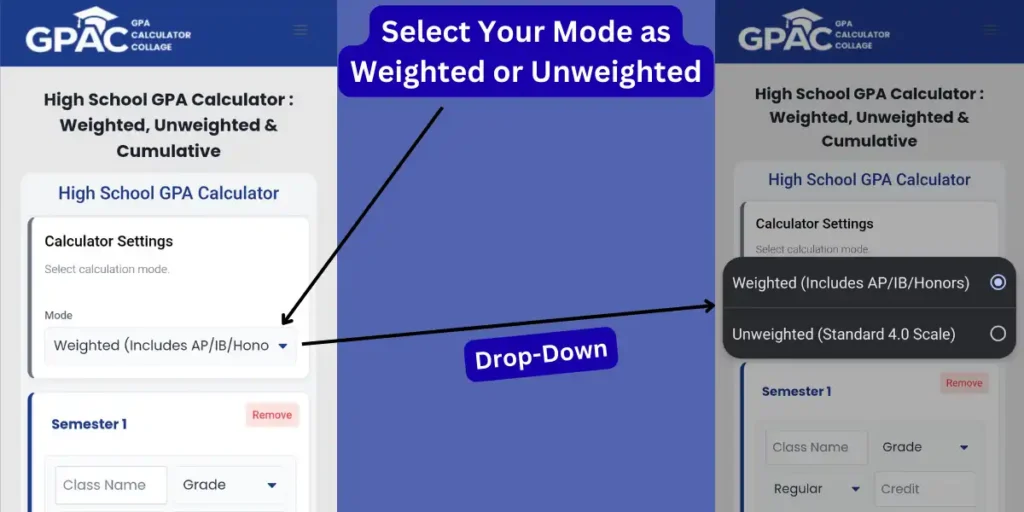
Before entering your grades, you must tell the calculator which grading scale your school uses. This is the most important step to ensure your result is accurate.
- Locate the “Mode” Dropdown: At the very top of the tool, under “Calculator Settings,” click the menu labeled “Mode”.
- Choose Your Option:
- Weighted (Includes AP/IB/Honors): Select this if you are taking advanced classes like AP (Advanced Placement), IB (International Baccalaureate), or Honors. This mode will unlock extra “weight” (bonus points) for difficult classes, often calculating on a 5.0 scale.
- Unweighted (Standard 4.0 Scale): Select this if you want to calculate your GPA strictly on the standard 4.0 scale, where an “A” is always a 4.0 regardless of the class difficulty.
- Why is this important? Selecting “Weighted” activates the “Type” column in the next step, allowing you to specify which classes deserve bonus points. If you are looking for a specific weighted gpa calculator high school result, you must select the first option.
Step 2: Enter Class Name and Select Course Difficulty
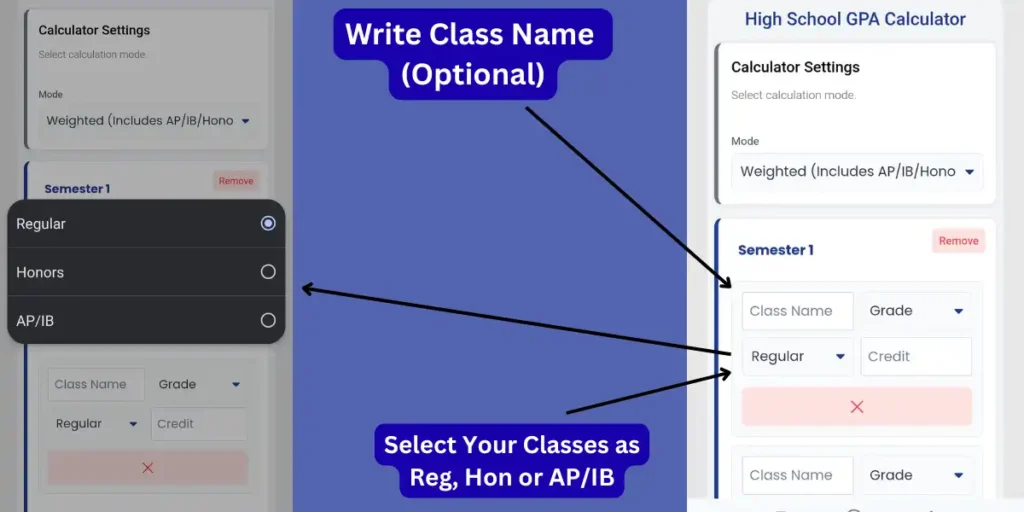
Now, list the specific subjects you are taking. If you selected “Weighted” mode in Step 1, this step is where you tell the calculator which classes deserve “bonus points.”
- Enter Class Name (Optional): In the box labeled “Class Name”, type the subject name (e.g., Algebra II, AP US History, or Chemistry).
- Tip: While this is optional, adding names helps you avoid mistakes when entering multiple grades.
- Select Class Type (Regular, Honors, or AP/IB): Click the dropdown menu next to the grade to define the difficulty level of the course:
- Regular: Choose this for standard high school classes. (Standard 4.0 scale).
- Honors: Choose this for Honors-level classes. These often carry a 0.5 or 1.0 point boost depending on your school’s policy.
- AP/IB: Choose this for Advanced Placement or International Baccalaureate courses. These are college-level classes and usually add a full 1.0 point to your GPA (making an “A” worth 5.0).
- Why is this critical? This specific setting enables the tool to function as a weighted GPA calculator high school. If you leave everything as “Regular,” you will only get an unweighted result.
Step 3: Select Your Grade and Enter Class Credits
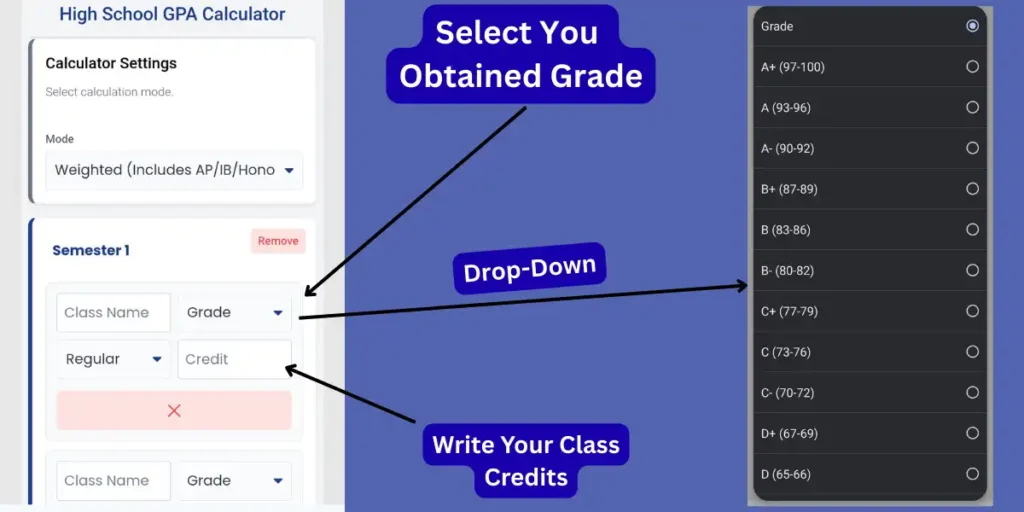
This step converts your letter grades into the numbers needed to calculate high school GPA.
- Select Your Obtained Grade: Click the “Grade” dropdown menu. You will see a list of letter grades (A+, A, A-, etc.) along with their percentage equivalents (e.g., A is 93-96).
- Select the grade you received on your report card.
- Note: Our tool automatically assigns the correct 4.0 scale points to these letters (e.g., an A is a 4.0, a B is a 3.0).
- Enter Class Credits: In the box labeled “Credit”, enter the credit value for that specific class.
- Standard Rule: In most high schools, a full-year course is worth 1.0 credit, and a semester-long course is worth 0.5 credits.
- Why do we need this? Even if you are looking for a high school gpa calculator no credits solution, entering credits makes the result 100% accurate because it weighs your “big” classes more than your electives.
Step 4: Select Grade and Enter Credits (Unweighted Mode)
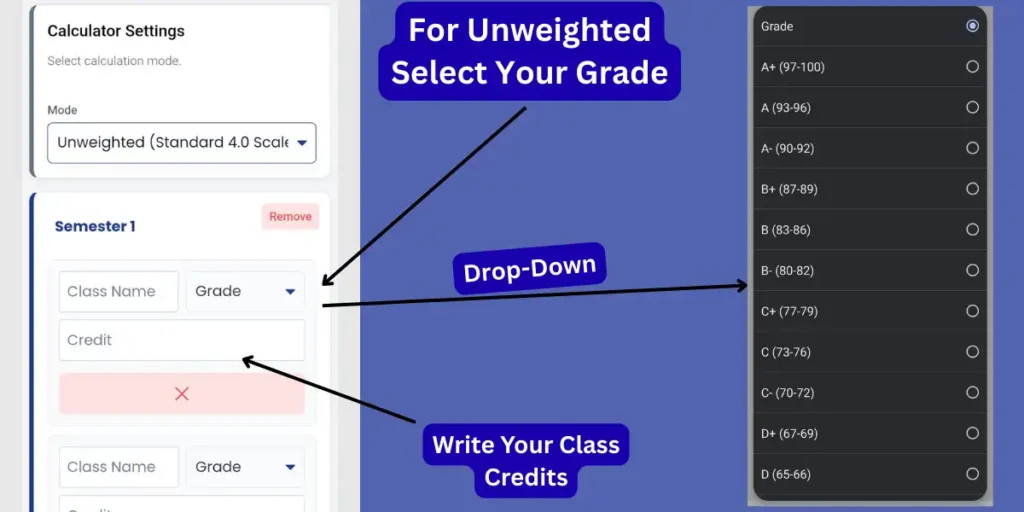
If you selected “Unweighted (Standard 4.0 Scale)” in Step 1, the process is slightly simpler because you don’t need to select a class difficulty type.
- Select Your Obtained Grade: Click the dropdown menu next to “Class Name.” You will see the standard letter grades (A+, A, A-, B+, etc.).
- Select the exact grade you received.
- Note: Since you are in “Unweighted” mode, the calculator will strictly apply the standard 4.0 scale (e.g., A=4.0, B=3.0) regardless of how hard the class was.
- Enter Class Credits: In the box labeled “Credit”, type the number of credits the class is worth (usually 1.0 for a full year or 0.5 for a semester).
- Why is this still needed? Even in unweighted calculations, credits act as the “weight” of the class itself. A 1.0 credit “A” counts more towards your average than a 0.5 credit “A”.
Step 5: Add or Remove Classes & Semesters
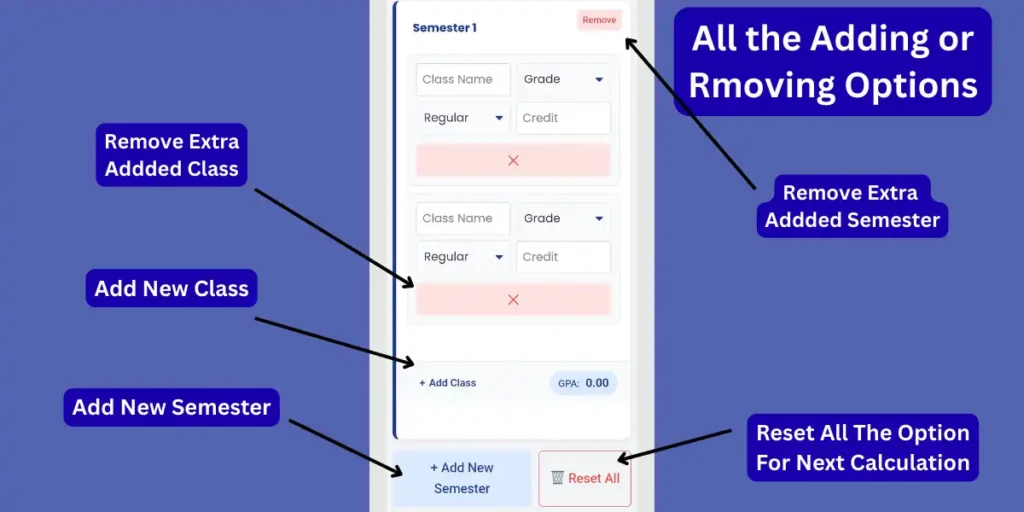
Every student’s schedule is different. You might take 7 classes while your friend takes 5. This step explains how to adjust the tool to match your exact report card.
- Add New Classes: If you have more subjects than the rows currently shown, click the “+ Add Class” link located at the bottom of the semester box. This will instantly create a new empty row for you to enter another subject.
- Remove Extra Classes: If there are empty rows you don’t need, click the Red “X” button next to that specific row.
- Tip: Removing unused rows keeps your view clean, though leaving them blank won’t break the calculation.
- Add a New Semester (For Cumulative GPA): To calculate your total high school GPA (e.g., Freshman + Sophomore years), you need to add more semesters. Click the large blue “+ Add New Semester” button at the bottom.
- Why do this? This turns the tool into a cumulative gpa calculator high school, allowing you to average multiple terms together.
- Reset All: To wipe everything and start a fresh calculation, click the “Reset All” button. This deletes all data and returns the calculator to its default state.
Step 6: View Your Weighted & Unweighted Results
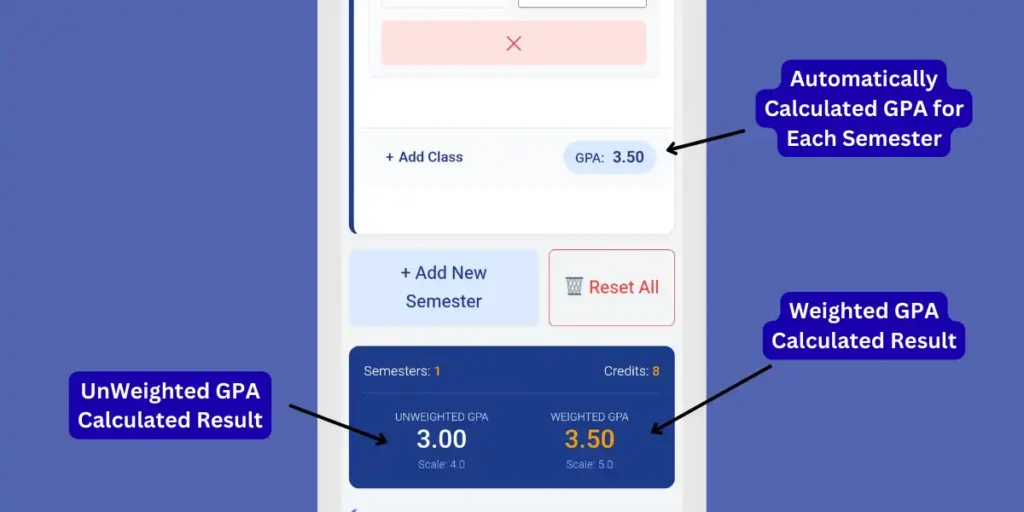
Once you have entered all your classes and grades, the calculator instantly processes the numbers to give you a complete performance summary. This is where you see the difference between your standard grades and your difficulty-adjusted grades.
- Check Your Semester GPA: First, look at the small blue badge located at the bottom right of the semester box (labeled “GPA”).
- This number represents your average strictly for that specific semester (e.g., 3.50).
- View Unweighted GPA (Standard): Look at the dark blue results bar at the bottom. The number on the left is your Unweighted GPA.
- What is this? This is your GPA calculated on a strict 4.0 Scale. It treats every class equally, meaning an “A” is always a 4.0, regardless of whether it was Gym or AP Physics.
- View Weighted GPA (Boosted): The number on the right (in gold/yellow) is your Weighted GPA.
- Why is it higher? If you entered Honors or AP classes, this score includes the “bonus points” (often on a 5.0 Scale). In the image example, the student has a 3.50 Weighted GPA compared to a 3.00 Unweighted GPA, reflecting the difficulty of their coursework.
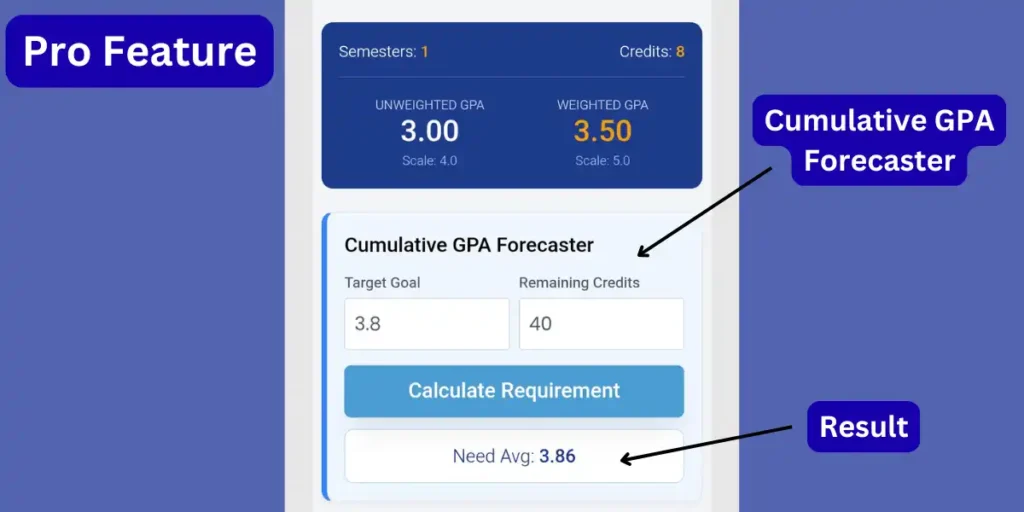
Step 7: Pro Feature: Forecast Your Required GPA
This advanced feature helps you plan for college admissions. If you are aiming for a specific GPA (like a 3.8 or 4.0) by the time you graduate, this tool calculates exactly what you need to score in your remaining classes.
- Locate the Forecaster: Scroll down below your results to find the section titled “Cumulative GPA Forecaster”.
- Enter Your Target Goal: In the box labeled “Target Goal”, type the final GPA you want to achieve (e.g., 3.8).
- Enter Remaining Credits: In the box labeled “Remaining Credits”, enter the total number of credits you have left to take before graduation (e.g., 40 credits).
- Tip: This helps the calculator understand how much opportunity you have left to raise your grade.
- Calculate Requirement: Click the blue “Calculate Requirement” button.
- The Result: Look for the white box below the button. It will show you the exact average you need to maintain.
- Example: “Need Avg: 3.86“ means you must average a 3.86 GPA in all your future classes to hit your goal.
Step 8: Pro Feature: Update Your Total High School GPA
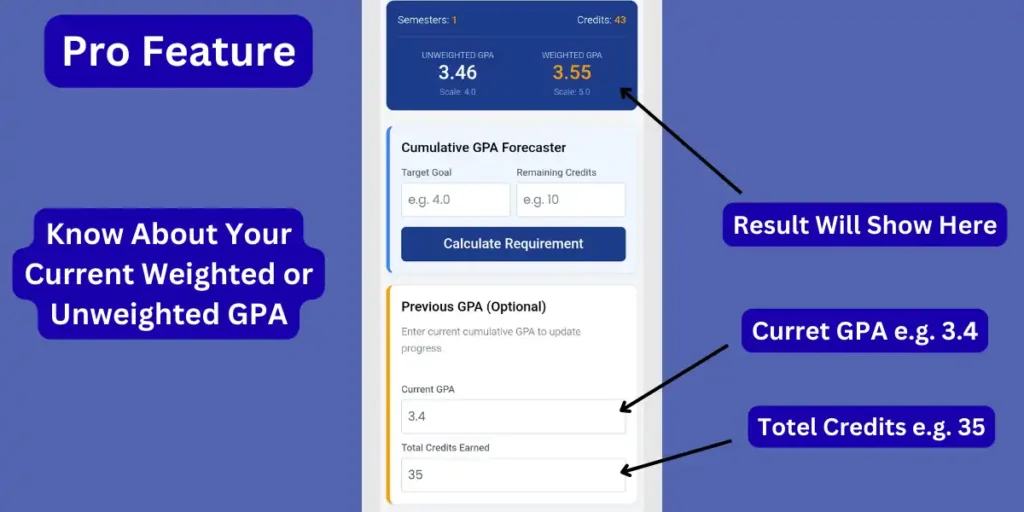
If you are a sophomore, junior, or senior, you already have a GPA from previous years. You don’t need to re-enter every single past class to get your updated cumulative score. This feature allows you to merge your past history with your new semester grades.
- Locate the Previous GPA Section: Scroll down to the box titled “Previous GPA (Optional)”. This section is designed for students who want to see how their new grades affect their overall high school standing.
- Enter Your Current GPA: In the box labeled “Current GPA”, type the cumulative GPA you have earned so far (e.g., 3.4).
- Enter Total Credits Earned: In the box labeled “Total Credits Earned”, enter the number of credits you have completed prior to this semester (e.g., 35).
- View Your Updated Cumulative Result: As soon as you enter these numbers, look at the dark blue results bar at the very top of the calculator.
- The Magic: The calculator instantly combines your old 3.4 GPA with the new grades you entered in the semester block to give you a brand new Total Weighted & Unweighted GPA.
Step 9: Download Result Report as PDF or Share
Once you have your final Weighted and Unweighted GPA, you don’t need to take screenshots. You can instantly generate a professional report to save or share.
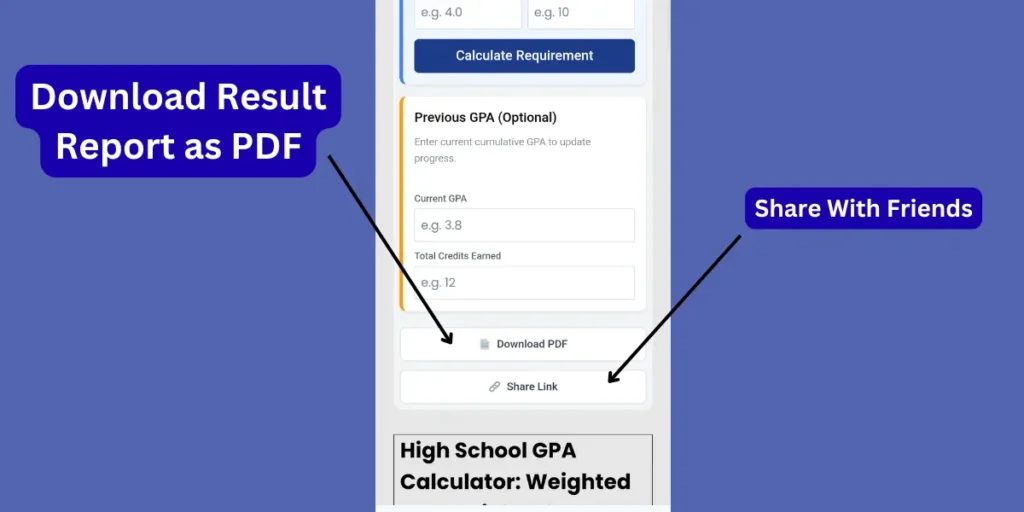
- Download Result (PDF): Click the “Download PDF” button. This will generate a clean, official-looking document listing all your semesters, classes, grades, and your final GPA summary.
- Why is this useful? This PDF is perfect for your personal records, showing to parents, or even attaching to scholarship applications as an unofficial transcript.
- Share With Friends: Click the “Share Link” button to copy a direct URL to the calculator. You can send this to your classmates so they can calculate their own high school GPA using the same accurate formula.
How High School GPA is Calculated (Formulas)
Understanding how to calculate high school GPA removes the mystery from your report card. Whether your school uses a standard system or gives bonus points for difficult classes, the math always follows a specific logic.
1. Unweighted GPA Formula (Standard 4.0 Scale)
The unweighted system is the most common method used by high schools. It treats every class equally, meaning an “A” in Gym class counts the same as an “A” in AP Physics.
The Formula:

- Step 1: Convert every letter grade to a number (A=4.0, B=3.0, etc.).
- Step 2: Multiply that number by the credits for that class (usually 1.0 or 0.5).
- Step 3: Add all your points together and divide by the total number of credits you took.
2. Weighted GPA Formula (5.0 Scale)
A weighted gpa calculator high school takes course difficulty into account. Selective colleges often look at this number to see if you challenged yourself.
- Honors Classes: Typically add 0.5 to your grade point (e.g., An “A” becomes a 4.5).
- AP / IB Classes: Typically add 1.0 to your grade point (e.g., An “A” becomes a 5.0).
High School Grading Scale Table
Use this table to understand how our gpa calculator high school converts your percentage or letter grade into points.
| Letter Grade | Percentage (%) | Unweighted Points (Regular) | Honors Points (+0.5) | AP / IB Points (+1.0) |
| A+ | 97-100 | 4.0 | 4.5 | 5.0 |
| A | 93-96 | 4.0 | 4.5 | 5.0 |
| A- | 90-92 | 3.7 | 4.2 | 4.7 |
| B+ | 87-89 | 3.3 | 3.8 | 4.3 |
| B | 83-86 | 3.0 | 3.5 | 4.0 |
| B- | 80-82 | 2.7 | 3.2 | 3.7 |
| C+ | 77-79 | 2.3 | 2.8 | 3.3 |
| C | 73-76 | 2.0 | 2.5 | 3.0 |
| C- | 70-72 | 1.7 | 2.2 | 2.7 |
| D+ | 67-69 | 1.3 | 1.8 | 2.3 |
| D | 65-66 | 1.0 | 1.5 | 2.0 |
| F | Below 65 | 0.0 | 0.0 | 0.0 |
Note: Some schools use a straight 4.0/5.0 scale without “minuses” or “pluses” (e.g., all A’s are 4.0). Our calculator adjusts for this based on the exact grade you select.
Conclusion
Your high school GPA is more than just a number; it is a key factor in college admissions and scholarship eligibility. While an unweighted GPA shows your consistency, a weighted GPA highlights your willingness to take on difficult coursework.
Instead of manually wrestling with credit hours and point conversions, use our High School GPA Calculator to get instant, accurate results. Whether you are checking a single semester or forecasting your cumulative score for graduation, knowing where you stand is the first step toward reaching your academic goals.
Start calculating now and take control of your future!