
College GPA Calculator: 4.0 Scale & Semester Grades
GPA Calculator College
Cumulative GPA Forecaster
What GPA do you need to reach your graduation goal?
Current CGPA (Optional)
Already have a GPA? Enter it here to update your total degree progress. Result will Show in Overall CGPA.
Your All-in-One GPA Calculator for College
Struggling to figure out your final standing? Whether you are aiming for a perfect 4.0 GPA or trying to maintain a solid 3.5 GPA for your scholarship, our gpa calculator takes the guesswork out of your academic journey.
Staying on top of your grades is essential for maintaining scholarships, making the Dean’s List, and applying to grad school. Our College GPA Calculator allows you to instantly calculate your Semester GPA and project your Cumulative GPA (CGPA) by combining your current grades with your previous credit history.
Guide on How to Use the GPA Calculator College
Step 1: Enter Course Name and Credits
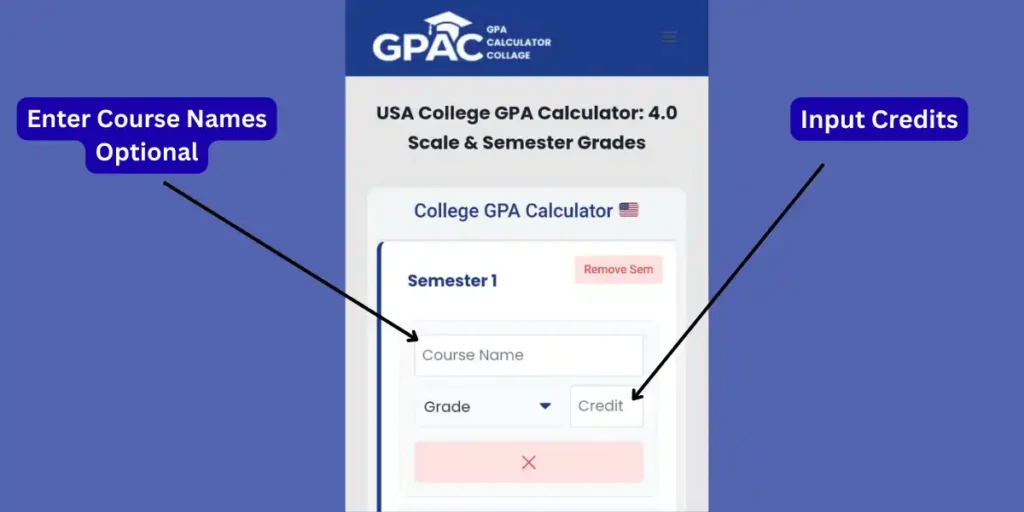
To begin calculating your GPA, you need to input the specific details for each class you are taking in Semester 1.
- Enter Course Name (Optional): Locate the text field labeled “Course Name” inside the semester box. Type the name of your subject here (e.g., “English 101” or “Calculus”). While this step is marked as Optional in the interface, it is helpful for keeping track of your grades if you are entering multiple classes at once.
- Input Credits: Find the small box labeled “Credit” located to the right of the “Grade” dropdown menu. Enter the total credit hours for that specific course (commonly 3 or 4 for college courses).
- Note: This step is critical because the calculator uses these credits to “weight” your GPA; an “A” in a 4-credit class affects your GPA more than an “A” in a 1-credit class.
Step 2: Select Your Grade
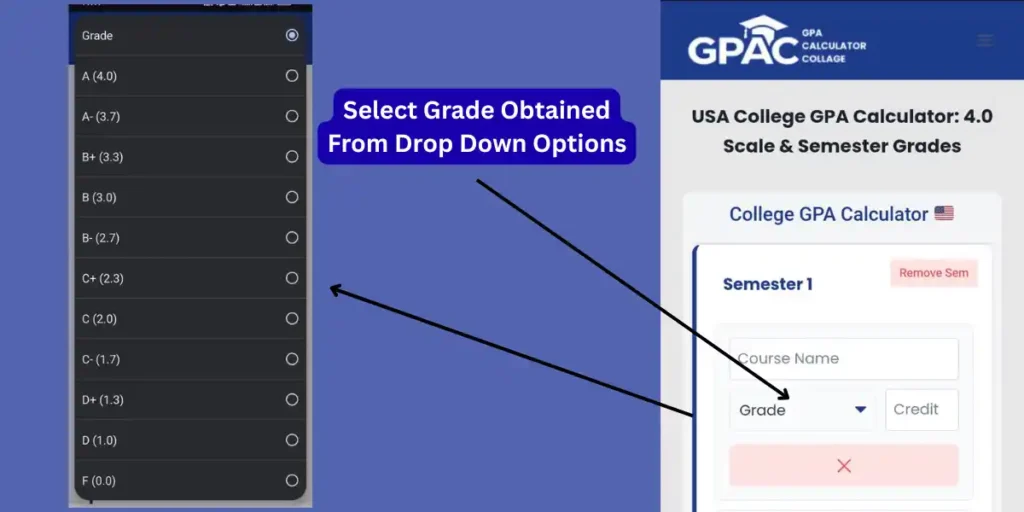
After entering the course details, the next step is to input the grade you received or expect to receive.
- Open the Dropdown Menu: Click or tap on the box labeled “Grade” within the course row. This will open a list of letter grades and their corresponding GPA values.
- Choose Your Grade: Scroll through the options and select the grade you achieved in that specific course (e.g., A (4.0), B+ (3.3), C (2.0), etc.). The calculator automatically assigns the correct point value based on the standard 4.0 scale.
Step 3: Add or Remove Courses
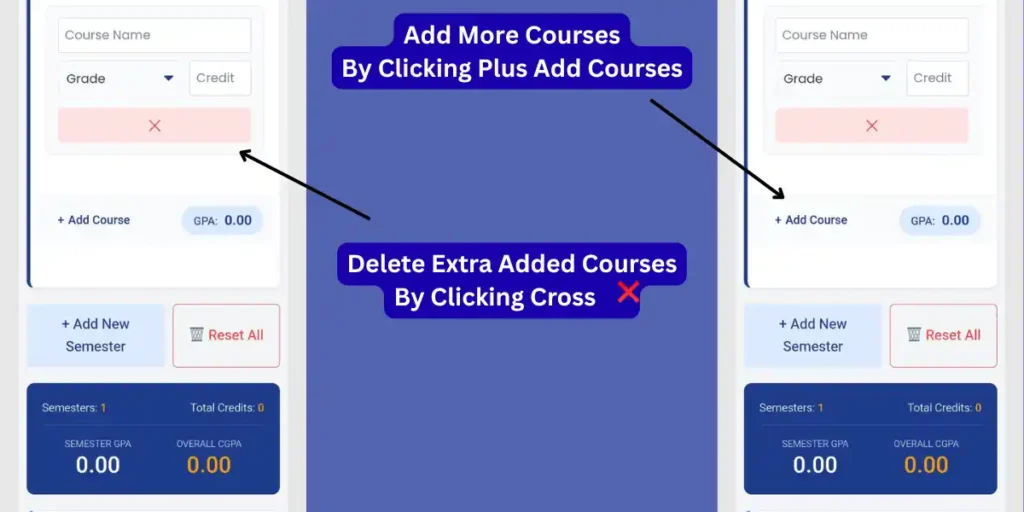
The calculator allows you to adjust the number of rows to match your actual schedule.
- Add More Classes: If you are taking more classes than the default rows provide, click or tap the “+ Add Course” button located at the bottom of the semester section. This will instantly create a new empty row for you to input another subject.
- Remove Unused Rows: If you have extra empty rows that you don’t need, remove them to ensure your calculation is accurate. Simply click the large pink/red “X” button located directly below the specific course row you want to delete.
Step 4: View Results and Add Semesters
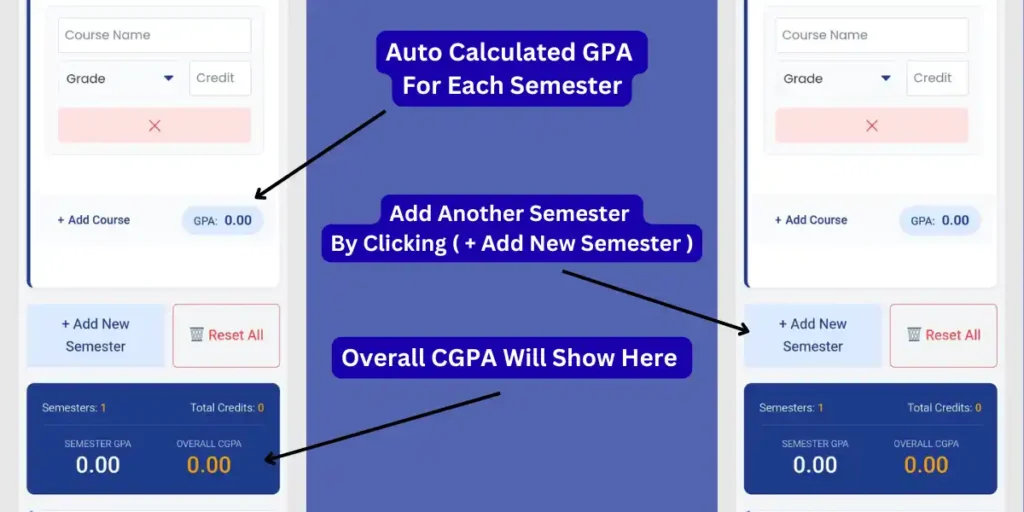
Once you have entered your grades and credits, the calculator provides instant feedback and allows you to expand your calculation.
- View Semester GPA: Your GPA for the specific semester you are working on is calculated automatically. Look for the light blue “GPA” badge located at the bottom right of the semester box to see the specific average for those classes.
- Add Another Semester: If you want to calculate your Cumulative GPA (CGPA) across multiple terms (e.g., Freshman and Sophomore years), click the large blue “+ Add New Semester” button. This creates a new section below for you to enter a fresh set of courses.
- Check Overall Results: The final calculations are displayed in the dark blue bar at the bottom of the tool.
- Semester GPA: Shows the average for the current grades entered.
- Overall CGPA: Displays your cumulative grade point average across all the semesters you have added.
Step 5: Reset Data or Remove Semesters
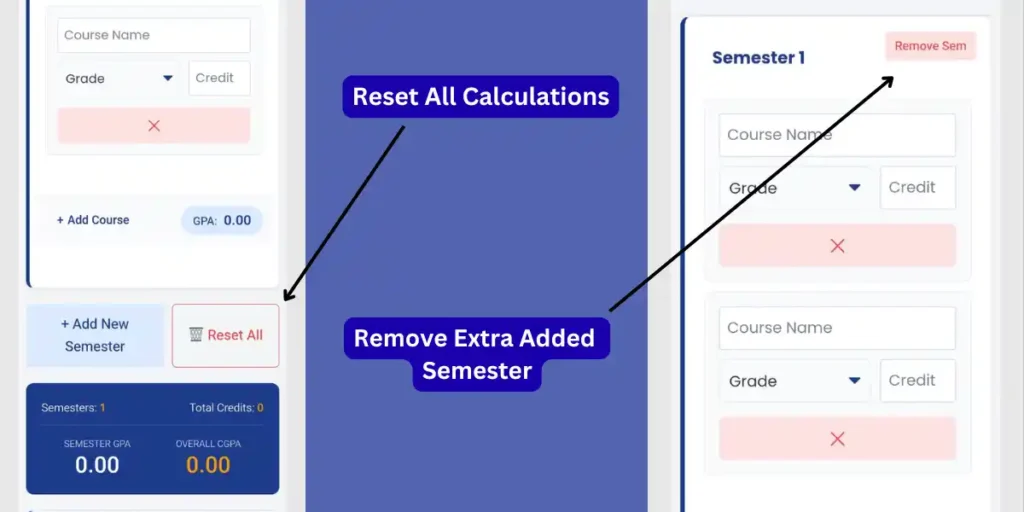
If you made a mistake or want to start a completely new calculation, you have two options to clear your data.
- Remove a Specific Semester: If you added an extra semester by mistake (e.g., “Semester 2” appearing when you only need “Semester 1”), click the pink “Remove Sem” button located at the top right corner of that specific semester block. This will delete only that section without affecting your other data.
- Reset All Calculations: To clear everything and start from scratch, click the “Reset All” button located next to the “Add New Semester” button. This will wipe all courses, credits, and grades from the calculator so you can begin a fresh calculation.
Step 6: Forecast Your Required GPA
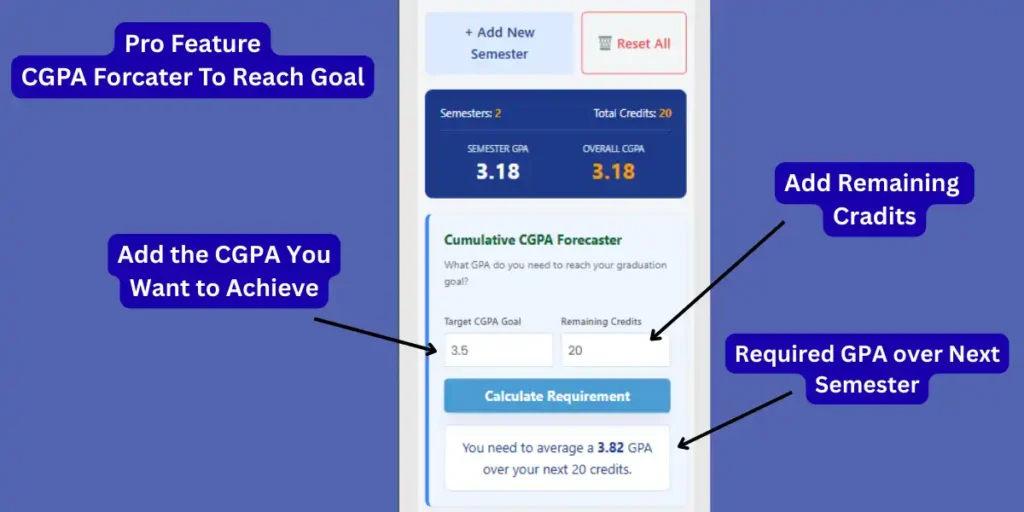
This unique feature helps you plan your future by calculating exactly what grades you need to achieve a specific goal (like graduating with Honors).
- Enter Target Goal: Scroll down to the “Cumulative CGPA Forecaster” section. In the box labeled “Target CGPA Goal”, enter the final GPA you want to achieve by the time you graduate (e.g., 3.5 or 3.8).
- Input Remaining Credits: In the “Credits Remaining” box, enter the number of credit hours you still have left to take before graduation.
- Calculate Requirement: Click the blue “Calculate Requirement” button. The tool will instantly display the specific average GPA you need to maintain in your remaining classes to hit your target (e.g., “You need to average a 3.82 GPA”).
Based on the images provided, here is the guide for the final input section of the calculator.
Step 7: Integrate Previous Grades (Optional)
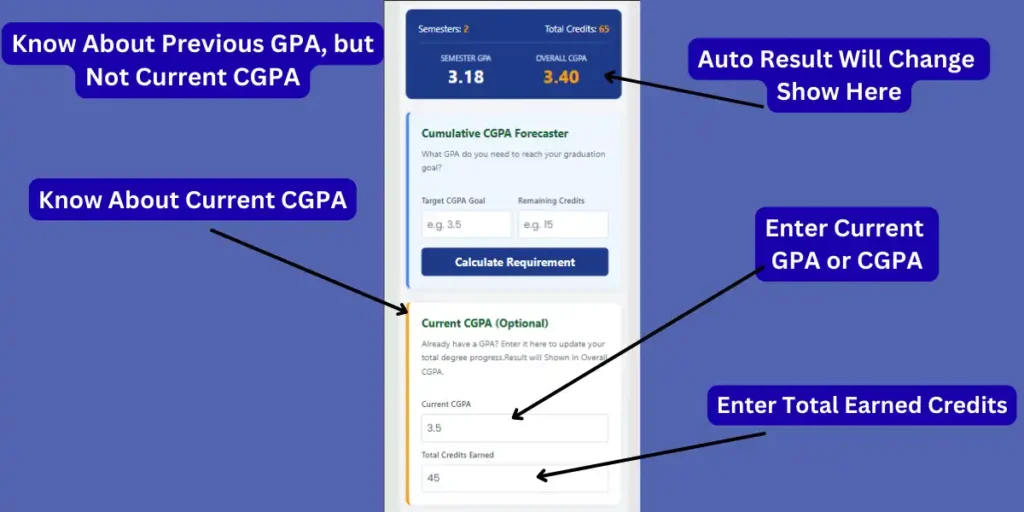
If you are a sophomore, junior, or senior, you likely already have a GPA from previous semesters. You can enter that data here to see how your current semester affects your total Cumulative GPA.
- Enter Current/Previous GPA: Locate the section labeled “Current CGPA (Optional)”. In the box titled “Current CGPA”, type in the cumulative GPA you had before starting this current semester.
- Enter Total Earned Credits: In the box next to it labeled “Total Credits Earned”, enter the total number of credit hours you have completed so far in your degree.
- View Updated Cumulative Result: As soon as you enter these numbers, the “OVERALL CGPA” displayed in the dark blue results bar at the top will automatically update. It combines your previous history with the new grades you just entered to give you your new, total Cumulative GPA.
Step 8: Download and Share Your Report
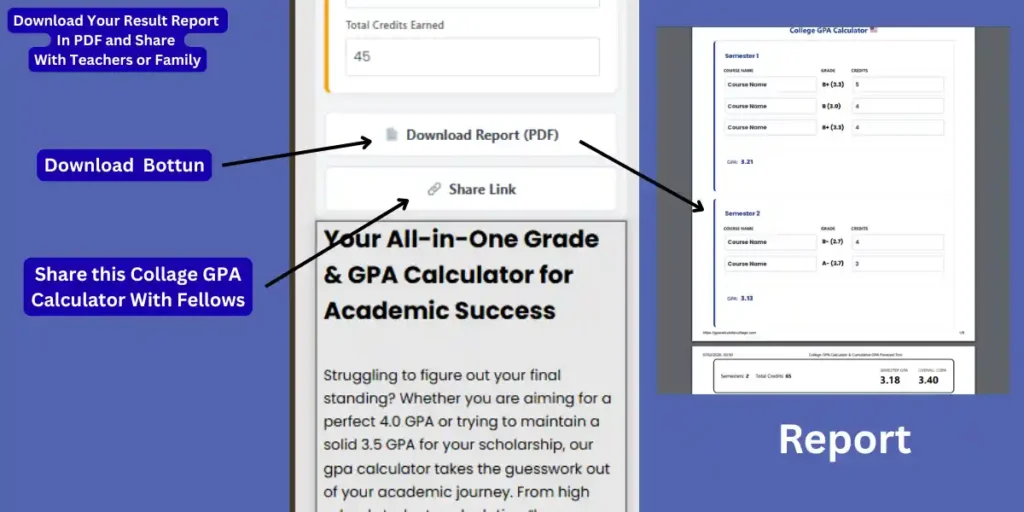
Once you have completed your calculations, you can save your results for your records or share them with others.
- Download PDF Report: Click the white “Download Report (PDF)” button located at the bottom of the calculator. This will instantly generate a clean, professional PDF file containing a breakdown of your semesters, courses, grades, and calculated GPAs.
- Tip: This is perfect for printing out to show academic advisors, parents, or for keeping a personal backup of your academic progress.
- Share Your Calculation: If you want to send your results directly to a friend, family member, or teacher, click the “Share Link” button. This will copy a direct link to your specific calculation so others can view it exactly as you see it.
How is College GPA Calculated?
Unlike high school, where classes may be weighted by difficulty (AP/IB), standard US college GPA is weighted strictly by Credit Hours.
The Formula:
GPA = (Total Grade Points) ÷ (Total Credit Hours)
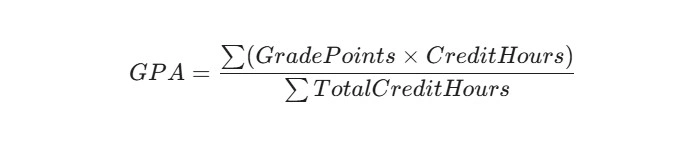
To calculate it manually:
- Convert your Letter Grade to Grade Points (A=4.0, B=3.0, etc.).
- Multiply the Grade Points by the Credits for that class to get “Quality Points”.
- Add up all your Quality Points.
- Divide by the Total Credits attempted.
Example Calculation:
Imagine a student takes 3 classes in a semester:
| Course | Grade | Points | Credits | Calculation (Points × Credits) |
| Biology 101 | A | 4.0 | 4 | 4.0 × 4 = 16.0 |
| History 200 | B | 3.0 | 3 | 3.0 × 3 = 9.0 |
| PE / Gym | A | 4.0 | 1 | 4.0 × 1 = 4.0 |
| Total | 8 | 29.0 |
Semester GPA: 29.0 ÷ 8 = 3.625
Semester vs. Cumulative: Calculate your current term result or forecast your final graduation CGPA.
Total Quality Points: 29.0
Total Credits: 8
US College Grading System (4.0 Scale)
This table shows how letter grades convert to grade points for GPA calculation.
| Letter Grade | Grade Points | Typical Percentage | Description |
| A | 4.0 | 93-100% | Excellent |
| A- | 3.7 | 90-92% | Excellent |
| B+ | 3.3 | 87-89% | Good |
| B | 3.0 | 83-86% | Good |
| B- | 2.7 | 80-82% | Good |
| C+ | 2.3 | 77-79% | Satisfactory |
| C | 2.0 | 73-76% | Satisfactory |
| C- | 1.7 | 70-72% | Passing |
| D+ | 1.3 | 67-69% | Poor / Passing |
| D | 1.0 | 65-66% | Poor / Passing |
| F | 0.0 | 0-64% | Failure |
Understanding the Cumulative GPA Forecast
The Cumulative GPA Forecast is a powerful planning tool that helps you see the “big picture.” While a semester GPA only tells you how you did this term, the Cumulative Forecast tells you where your entire degree stands.
How the Calculation Works
The tool doesn’t just average your old GPA and your new one. Instead, it uses a weighted credit system to ensure accuracy:
- Grade Points: It takes your current results and converts them into total “Quality Points” (Grade \times Credits).
- Historical Data: It looks at your Previous Credits and Previous GPA to determine how much “weight” your past performance carries.
- The Combined Formula: It adds your new points to your old points and divides them by your total credits.

Pro Tip
If you are a freshman, your Previous Credits and Previous GPA will both be 0. As you progress through your degree, always use the ‘Cumulative’ totals found at the bottom of your latest official transcript for the most accurate forecast
Frequently Asked Questions
Your GPA is calculated by converting your letter grade into “Grade Points” (like an A becomes a 4.0). These points are multiplied by the credits for that class to get “Quality Points.” Finally, your Total Quality Points are divided by your Total Credits to get your GPA.
Semester GPA: This is your average for only the current term (e.g., just your Fall classes).
Cumulative GPA (CGPA): This is the average of all classes you have taken throughout your entire college degree. You can calculate this by entering your previous GPA and total earned credits into the “Current CGPA” section of the calculator.
Your Semester GPA is just for your current term. To find your Cumulative GPA (your overall standing for your entire degree), you need to combine your history with your current grades. Scroll down to the “Cumulative Forecast” section of our tool and enter your Total Previous Credits and Previous CGPA found on your last transcript. We’ll do the math to show your new degree average.
While it varies by major and university, here is a general breakdown:
- 3.7 – 4.0: Excellent (Dean’s List, Summa Cum Laude).
- 3.5 – 3.6: Very Good (Cum Laude).
- 3.0 – 3.4: Good (Solid standing for most jobs).
- Below 2.0: Academic Probation.
Not all classes are worth the same amount. A 4-credit Physics class has 4x more impact on your GPA than a 1-credit Gym class.

Our tool weighs your grades by credit hours to ensure your calculation is 100% accurate.
Yes. While every school is different, the standard College Board conversion is roughly:
- 93–100% = A (4.0)
- 90–92% = A- (3.7)
- 87–89% = B+ (3.3)
- 83–86% = B (3.0) You can simply select the letter grade that corresponds to your percentage in our dropdown menu.
No. In most US colleges, a “W” stands for Withdrawal. It means you dropped the class before the deadline. It appears on your transcript but has zero impact on your GPA calculation. It is neither a success nor a failure.